
Python Bokeh is one of the best Python packages for data visualization. Today we are going to see some Python Bokeh Examples. Learn this easy visualization tool and add it to your Python stack.
What is Python Bokeh?
Python Bokeh is a data visualization tool or we can also say Python Bokeh is used to plot various types of graphs. There are various other graph plotting libraries like matplotlib but Python Bokeh graphs are dynamic in nature means you can interact with the generated graph. See the below examples…
Installation 💻
Python Bokeh can be easily installed using PIP. You can install the Python Bokeh easily by running the command:
pip install bokehNow everything is ready let’s go through the examples 🏃♂️…
1. Line Plot
A line plot is perfect for visualizing trends over continuous data points, such as time series data.
from bokeh.plotting import figure, output_file, save
x = [1, 2, 3, 4, 5]
y = [4, 5, 5, 7, 3]
p = figure(title="Line Plot Python Bokeh Example", x_axis_label='X', y_axis_label='Y')
p.line(x, y, line_width=2)
output_file('1_line_plot.html')
save(p)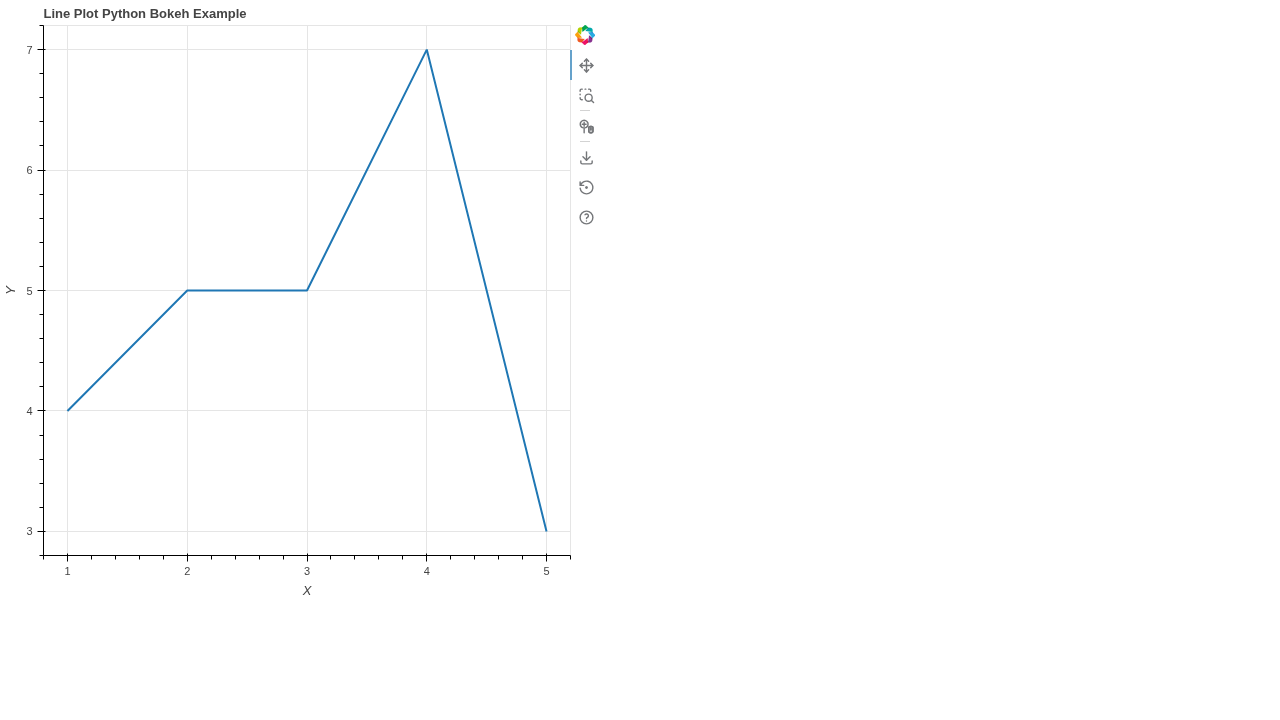
2. Scatter Plot
Scatter plots are used to observe relationships and correlations between two numeric variables. We can customize the size, color, and transparency of the markers.
from bokeh.plotting import figure, output_file, save
x = [1, 2, 3, 4, 5]
y = [4, 5, 5, 7, 3]
p = figure(title="Scatter Plot Example", x_axis_label='X', y_axis_label='Y')
p.scatter(x, y, size=15, color="navy", alpha=0.5)
output_file('2_scatter_plot.html')
save(p)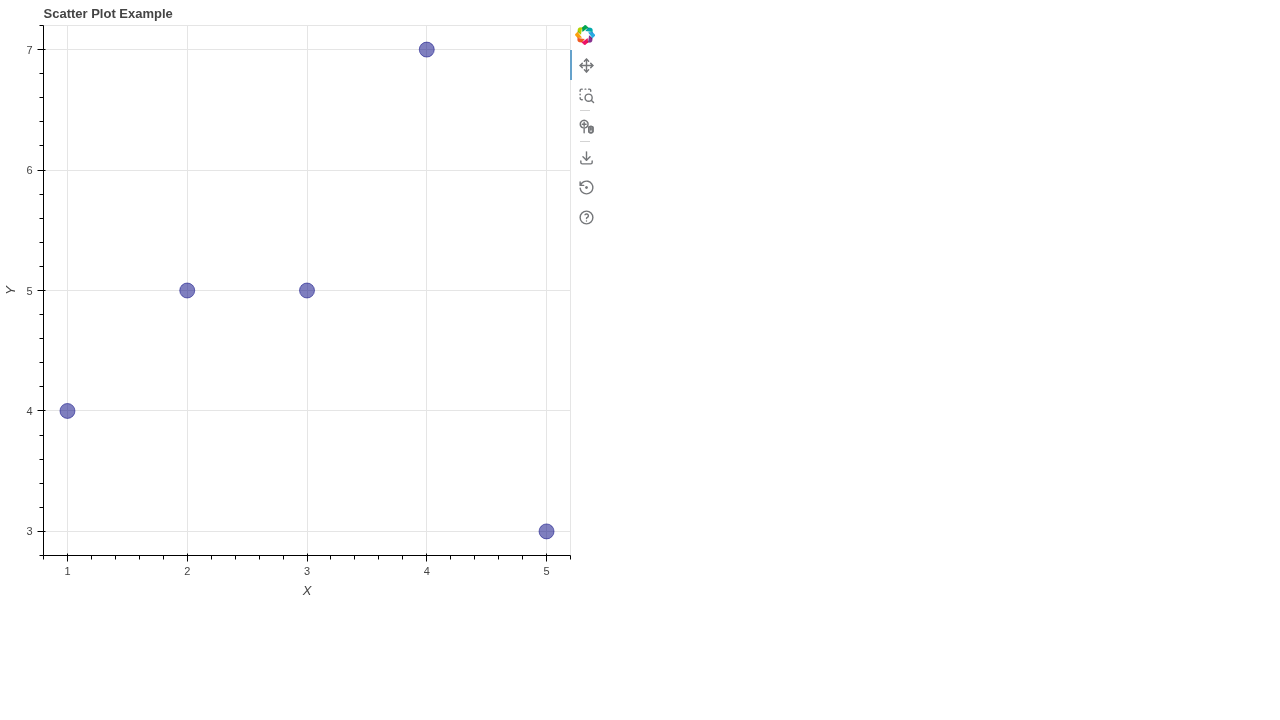
3. Bar Chart
Vertical bar charts are commonly used to compare quantities across different categories, like showing the count of various fruits.
from bokeh.plotting import figure, output_file, save
fruits = ['Apples', 'Pears', 'Nectarines', 'Plums', 'Grapes', 'Strawberries']
counts = [5, 3, 4, 2, 4, 6]
p = figure(x_range=fruits, height=350, title="Fruit Counts", toolbar_location=None, tools="")
p.vbar(x=fruits, top=counts, width=0.9)
p.xgrid.grid_line_color = None
p.y_range.start = 0
output_file('3_bar_chart.html')
save(p)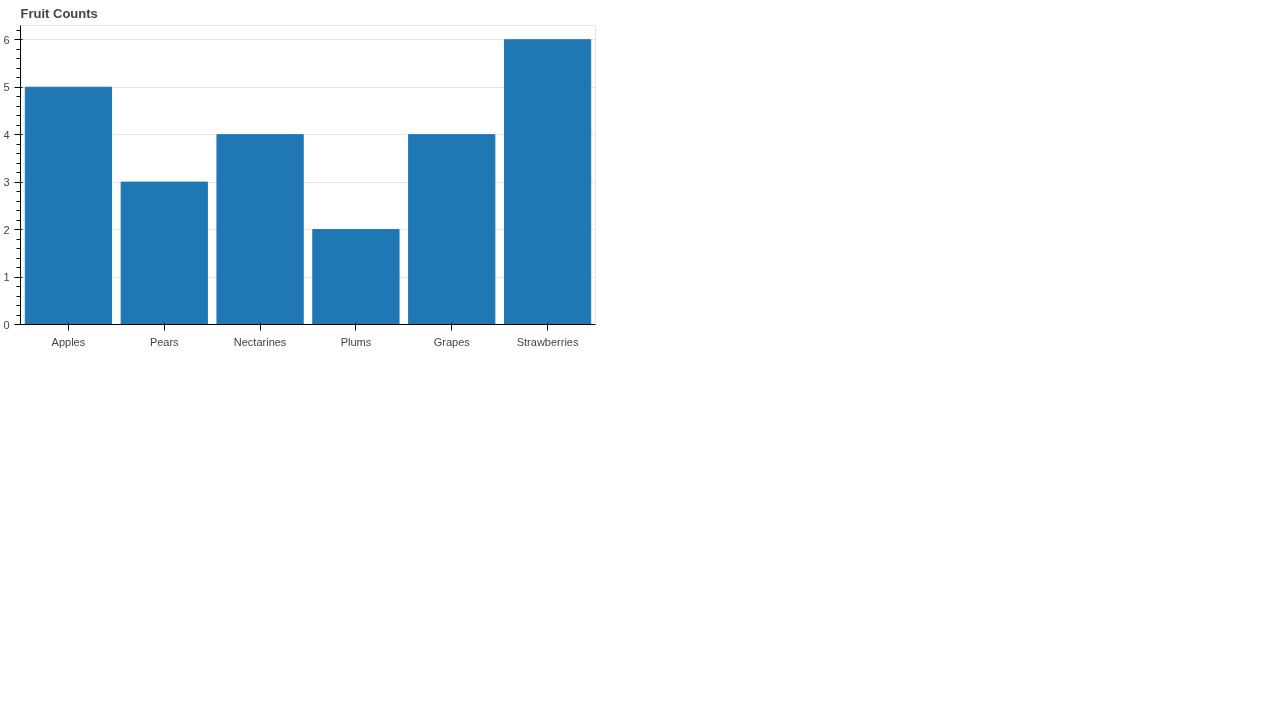
4. Pie Chart
Pie charts help visualize the composition of a whole. In Bokeh, we use the `wedge` glyph and calculate angles to construct the pie.
from bokeh.plotting import figure, output_file, save
from math import pi
import pandas as pd
from bokeh.transform import cumsum
x = { 'United States': 157, 'United Kingdom': 93, 'Japan': 89, 'China': 63, 'Germany': 44, 'India': 114 }
data = pd.Series(x).reset_index(name='value').rename(columns={'index':'country'})
data['angle'] = data['value']/data['value'].sum() * 2*pi
data['color'] = ['#3182bd', '#6baed6', '#9ecae1', '#c6dbef', '#e6550d', '#fd8d3c']
p = figure(height=350, title="Pie Chart", toolbar_location=None, tools="hover", tooltips="@country: @value", x_range=(-0.5, 1.0))
p.wedge(x=0, y=1, radius=0.4, start_angle=cumsum('angle', include_zero=True), end_angle=cumsum('angle'), line_color="white", fill_color='color', legend_field='country', source=data)
output_file('4_pie_chart.html')
save(p)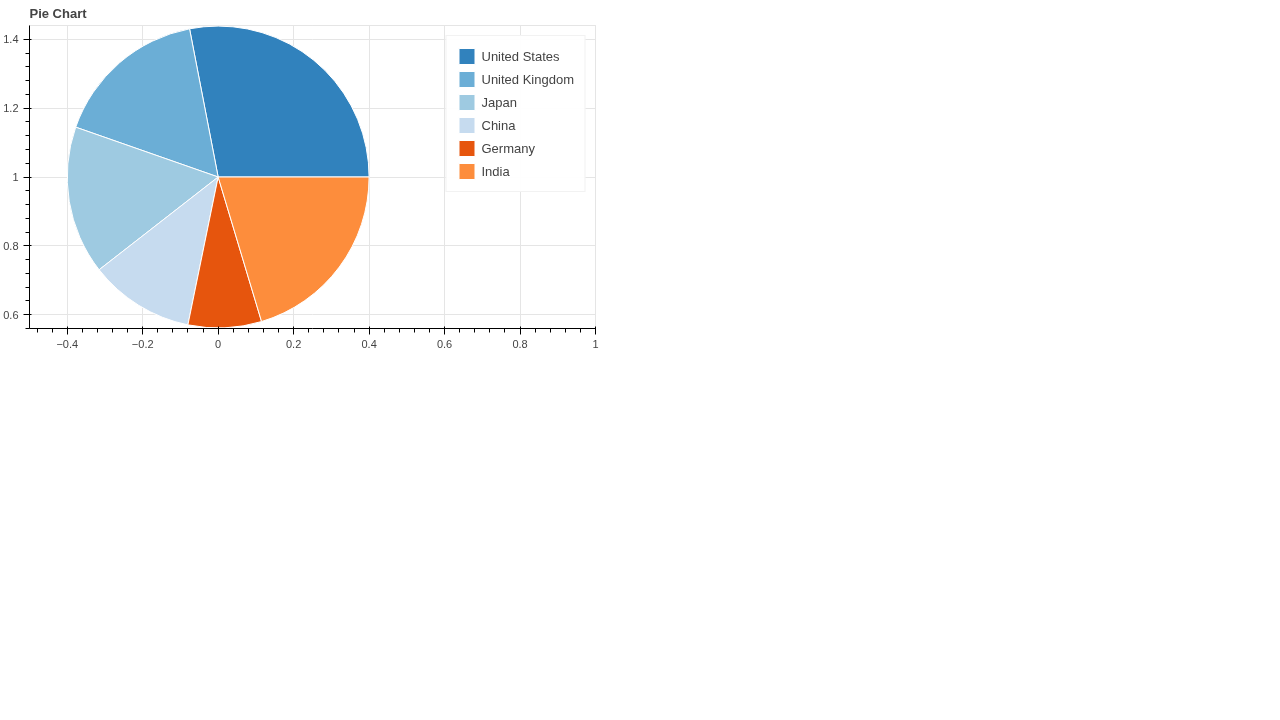
5. Step Chart
Step charts are useful for displaying data that changes at irregular intervals, forming a step-like progression rather than a direct line.
from bokeh.plotting import figure, output_file, save
x = [1, 2, 3, 4, 5, 6]
y = [1, 4, 2, 5, 2, 6]
p = figure(title="Step Chart", x_axis_label='X', y_axis_label='Y')
p.step(x, y, line_width=2, mode="center")
output_file('5_step_chart.html')
save(p)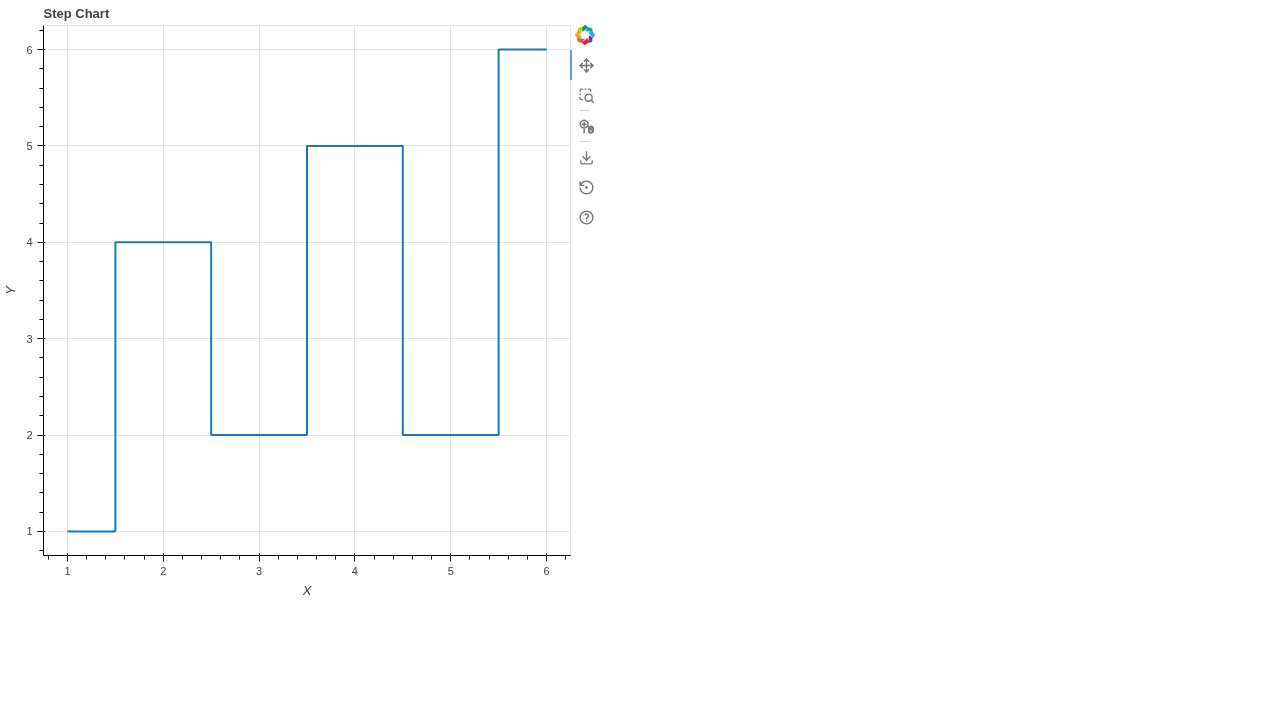
6. Area Chart
Area charts fill the space between lines or axes, making it easy to see the volume or magnitude of the plotted data.
from bokeh.plotting import figure, output_file, save
x = [1, 2, 3, 4, 5]
y1 = [2, 4, 5, 8, 4]
y2 = [1, 2, 4, 6, 3]
p = figure(title="Area Chart")
p.varea(x=x, y1=y1, y2=y2, fill_color="blue", alpha=0.3)
output_file('6_area_chart.html')
save(p)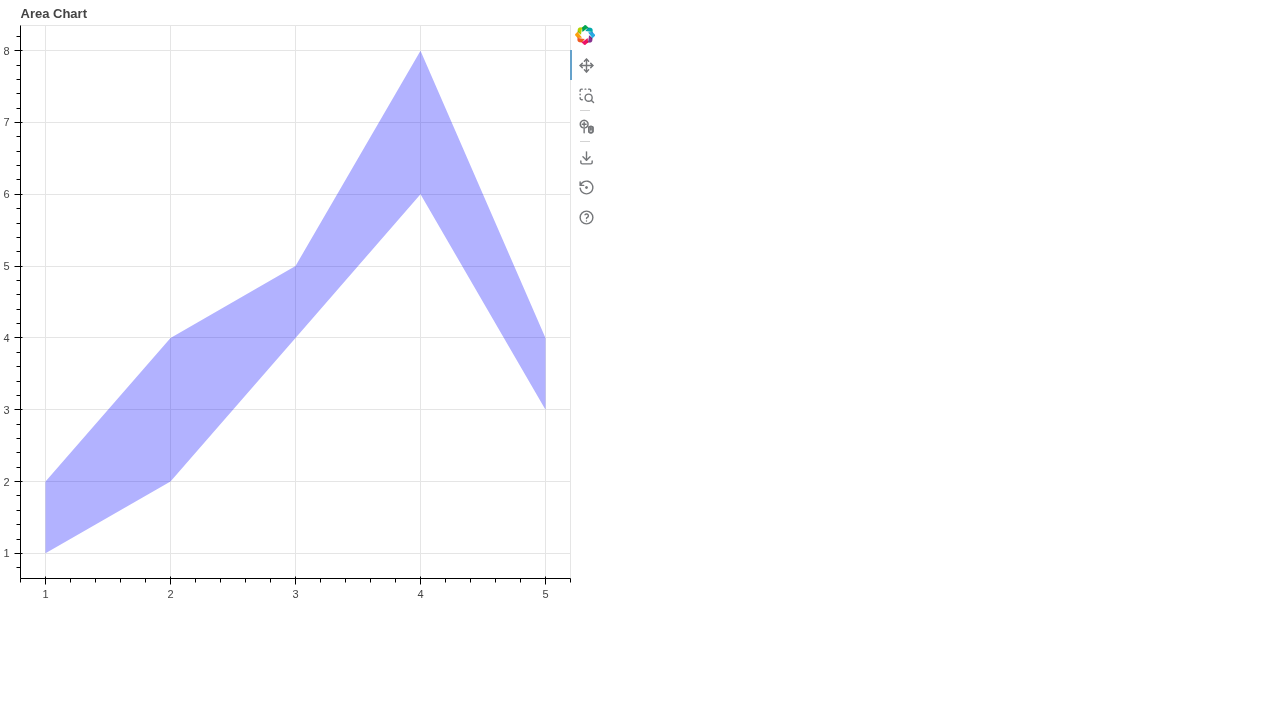
7. Histogram
Histograms show the distribution of numerical data by grouping data points into bins, which is highly useful in statistical analysis.
from bokeh.plotting import figure, output_file, save
import numpy as np
measured = np.random.normal(0, 0.5, 1000)
hist, edges = np.histogram(measured, density=True, bins=50)
p = figure(title="Histogram", background_fill_color="#fafafa")
p.quad(top=hist, bottom=0, left=edges[:-1], right=edges[1:], fill_color="navy", line_color="white", alpha=0.5)
output_file('7_histogram.html')
save(p)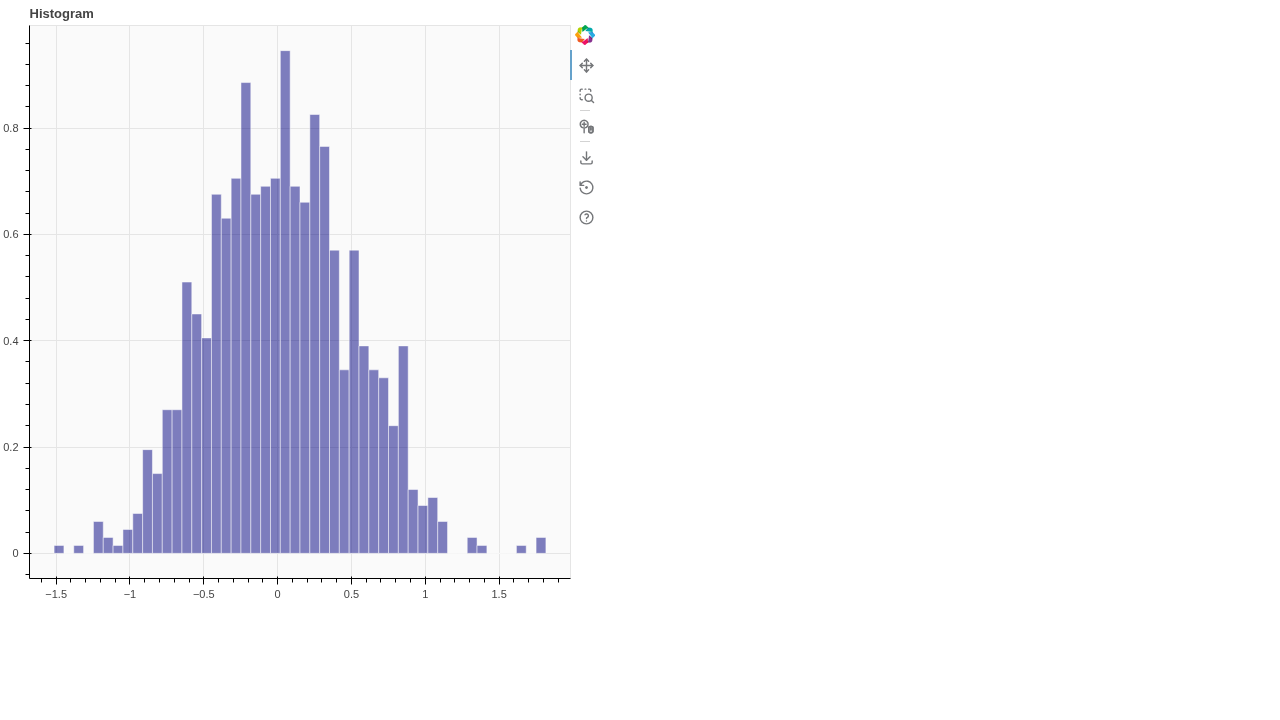
8. Multiple Lines
You can plot multiple lines on the same graph by calling the `line` method multiple times. This is great for comparing different data series.
from bokeh.plotting import figure, output_file, save
x = [1, 2, 3, 4, 5]
y1 = [6, 7, 2, 4, 5]
y2 = [5, 2, 8, 6, 2]
p = figure(title="Multiple Lines")
p.line(x, y1, legend_label="Temp", color="blue", line_width=2)
p.line(x, y2, legend_label="Rate", color="red", line_width=2)
output_file('8_multiple_lines.html')
save(p)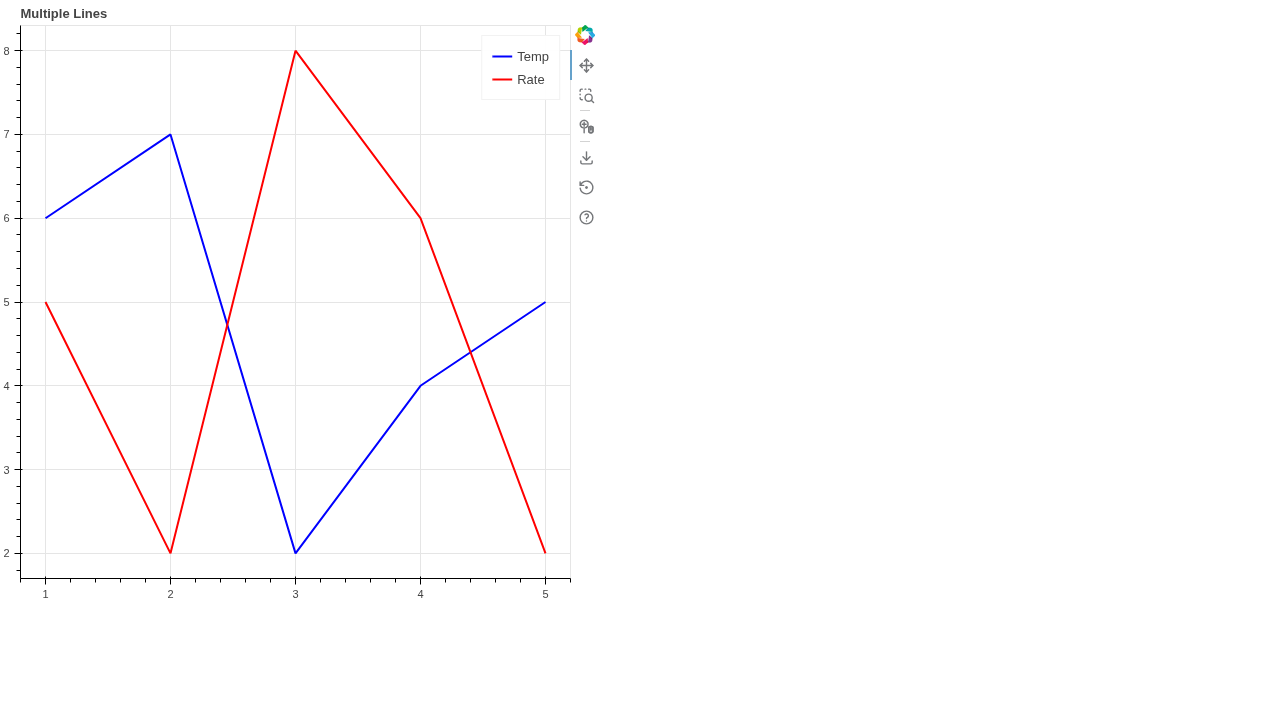
9. Horizontal Bar Chart
Horizontal bar charts are an excellent alternative to vertical ones, especially when your category names are long and need more horizontal space to be readable.
from bokeh.plotting import figure, output_file, save
factors = ["a", "b", "c", "d", "e", "f", "g", "h"]
x = [50, 40, 65, 10, 25, 37, 80, 60]
p = figure(y_range=factors, title="Horizontal Bar Chart")
p.hbar(y=factors, right=x, height=0.5, color="green")
output_file('9_hbar_chart.html')
save(p)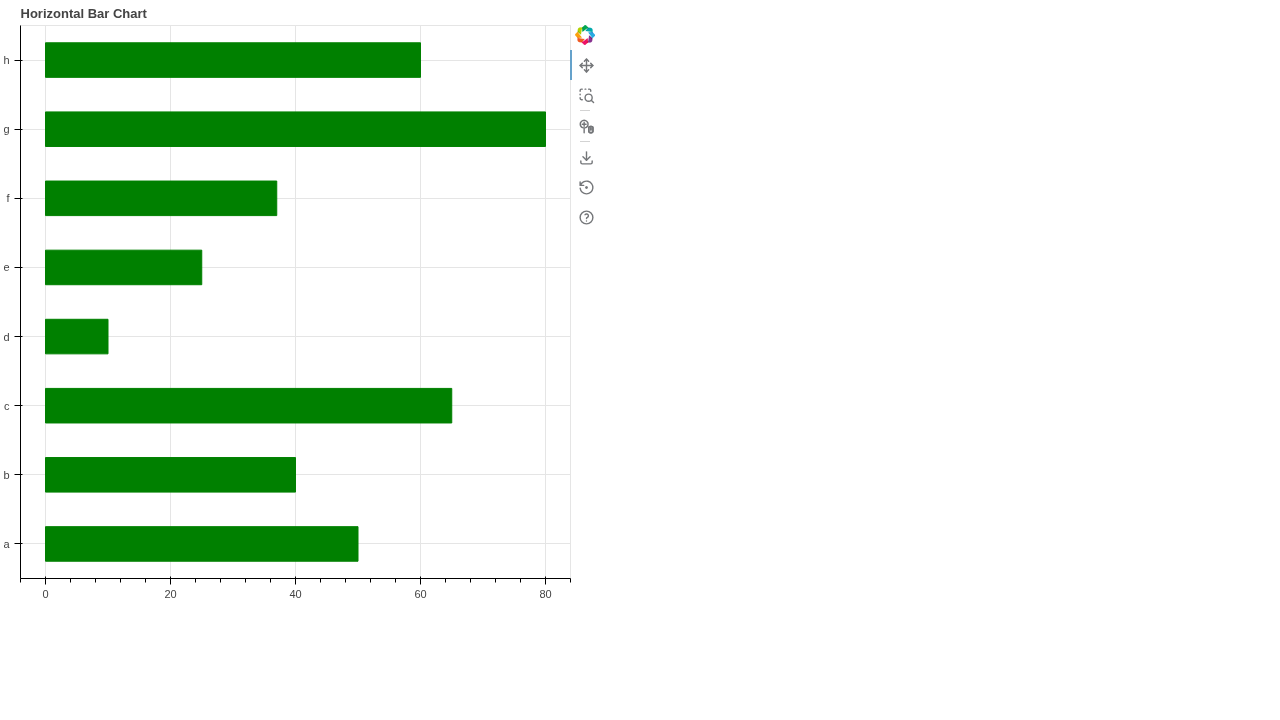
10. Hexbin Plot
Hexbin plots are ideal for visualizing the density of a large number of overlapping data points using hexagonal bins.
from bokeh.plotting import figure, output_file, save
import numpy as np
x = np.random.standard_normal(500)
y = np.random.standard_normal(500)
p = figure(title="Hexbin Plot", match_aspect=True, background_fill_color='#440154')
p.hexbin(x, y, size=0.5, hover_color="pink", hover_alpha=0.8)
output_file('10_hexbin_plot.html')
save(p)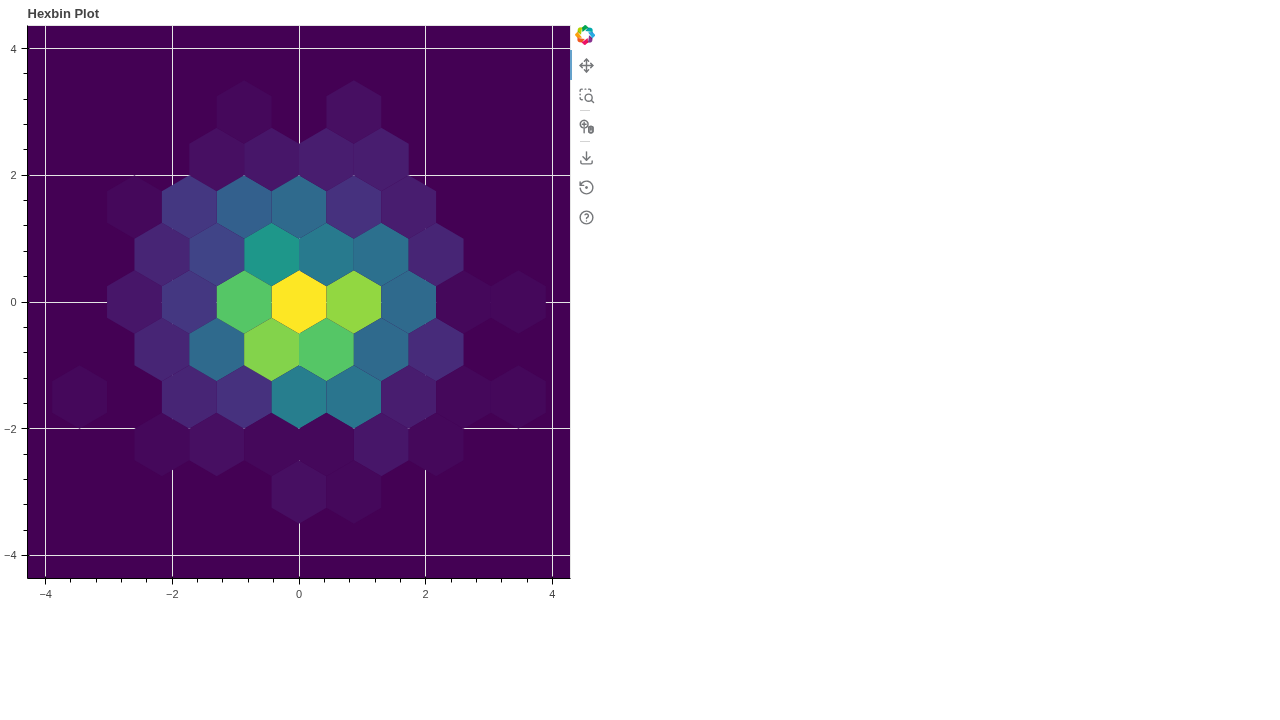
11. Patch Plot
Patch plots allow you to draw a custom filled polygon based on a set of connected coordinates.
from bokeh.plotting import figure, output_file, save
x = [1, 2, 3, 4, 3, 2]
y = [2, 1, 1, 2, 3, 3]
p = figure(title="Patch Plot Example")
p.patch(x, y, alpha=0.5, line_width=2, fill_color="firebrick")
output_file('11_patch_plot.html')
save(p)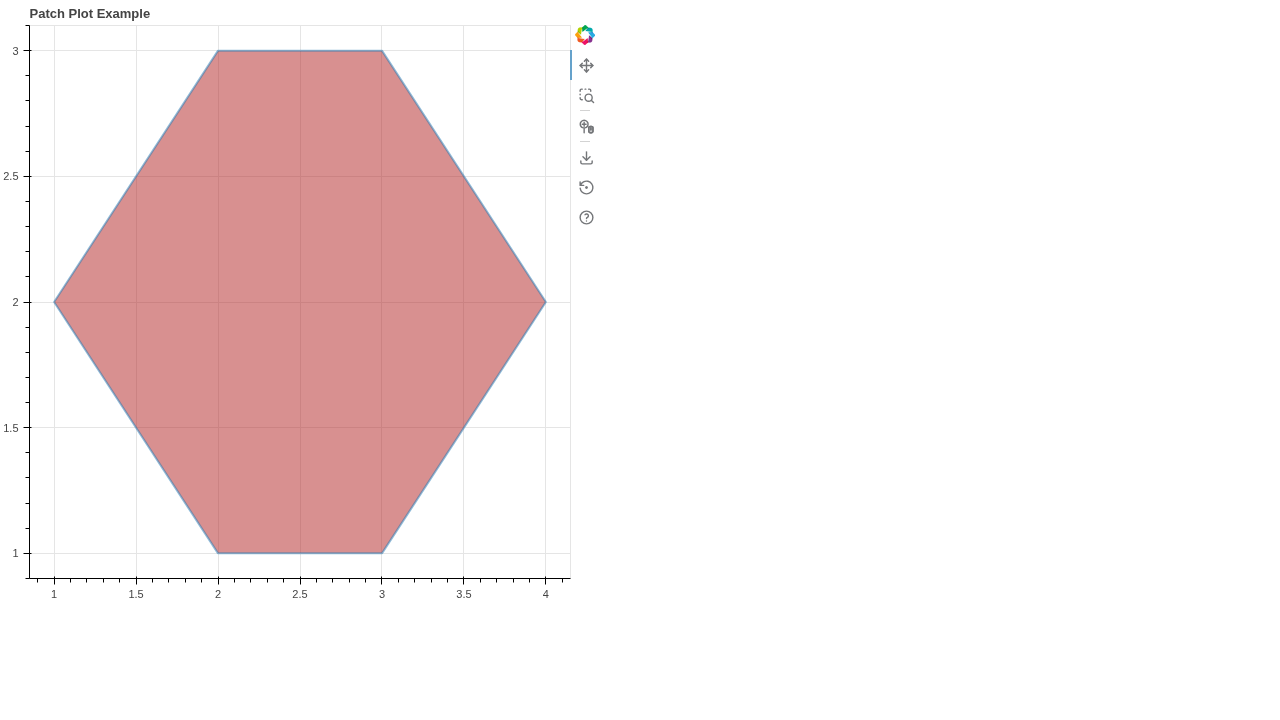
12. Stacked Bar Chart
Stacked bar charts show the total value for a category while simultaneously displaying the breakdown of its sub-components.
from bokeh.plotting import figure, output_file, save
fruits = ['Apples', 'Pears', 'Nectarines']
years = ["2015", "2016", "2017"]
colors = ["#c9d9d3", "#718dbf", "#e84d60"]
data = {'fruits': fruits, '2015': [2, 1, 4], '2016': [5, 3, 4], '2017': [3, 2, 4]}
p = figure(x_range=fruits, height=350, title="Fruit Counts by Year", toolbar_location=None, tools="")
p.vbar_stack(years, x='fruits', width=0.9, color=colors, source=data, legend_label=years)
output_file('12_stacked_bar.html')
save(p)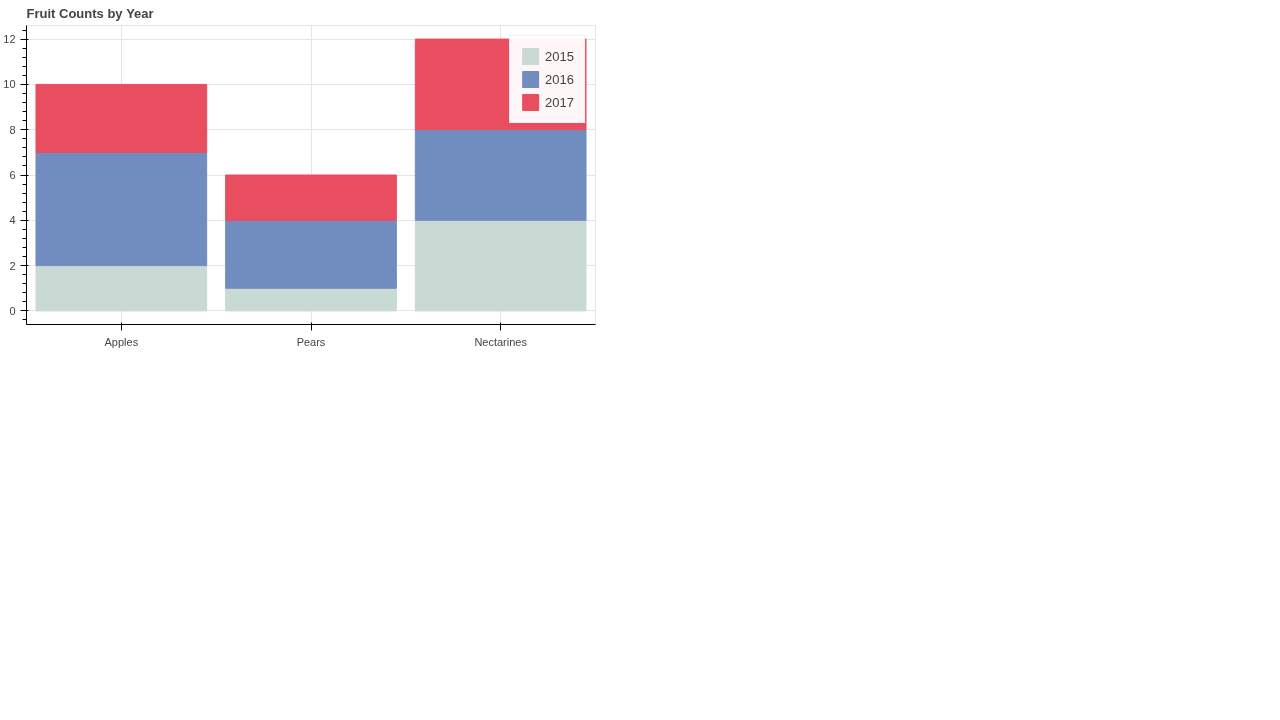
13. Annulus Plot
An annulus plot creates ring-like shapes on your graph by defining both an inner and an outer radius.
from bokeh.plotting import figure, output_file, save
p = figure(title="Annulus Plot")
p.annulus(x=[1, 2, 3], y=[1, 2, 3], color="#7FC97F", inner_radius=0.1, outer_radius=0.25)
output_file('13_annulus.html')
save(p)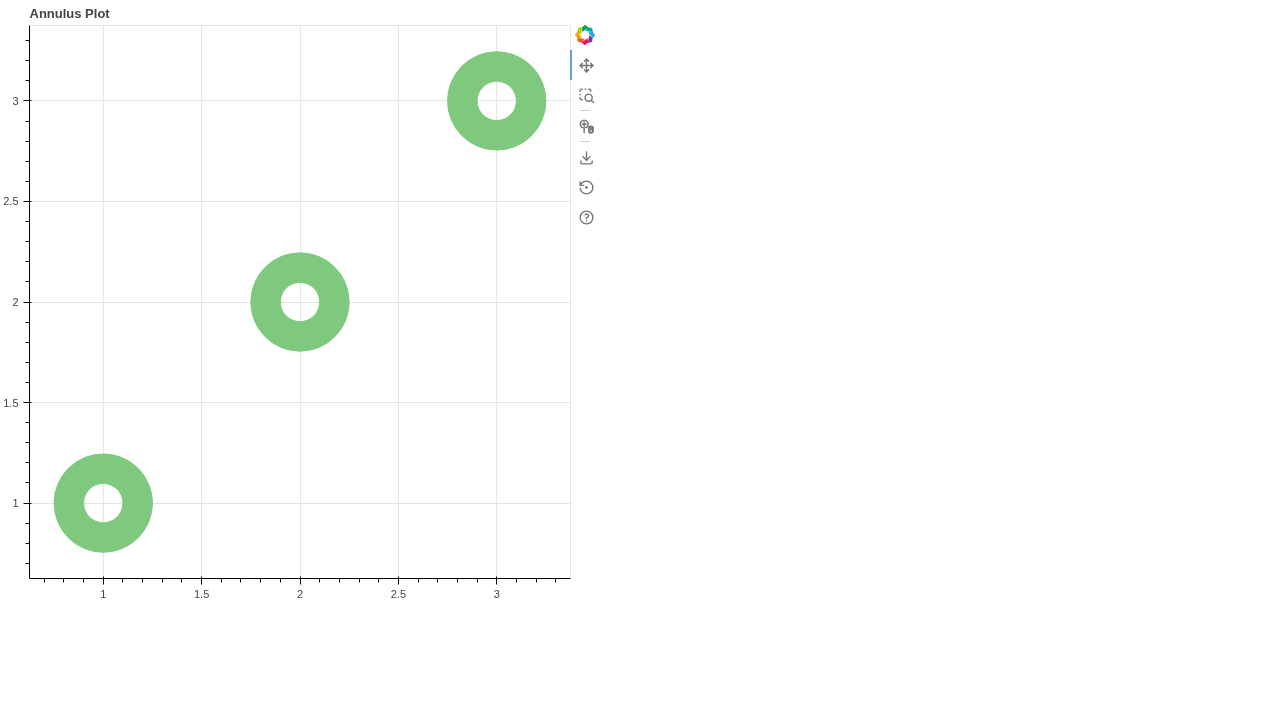
14. Wedge Plot
Wedge plots draw circular sectors (like slices of a pie) based on a starting and ending angle with a specific radius.
from bokeh.plotting import figure, output_file, save
p = figure(title="Wedge Plot Example")
p.wedge(x=[1, 2, 3], y=[1, 2, 3], radius=0.2, start_angle=0.4, end_angle=4.8, color="firebrick", alpha=0.6, direction="clock")
output_file('14_wedge_plot.html')
save(p)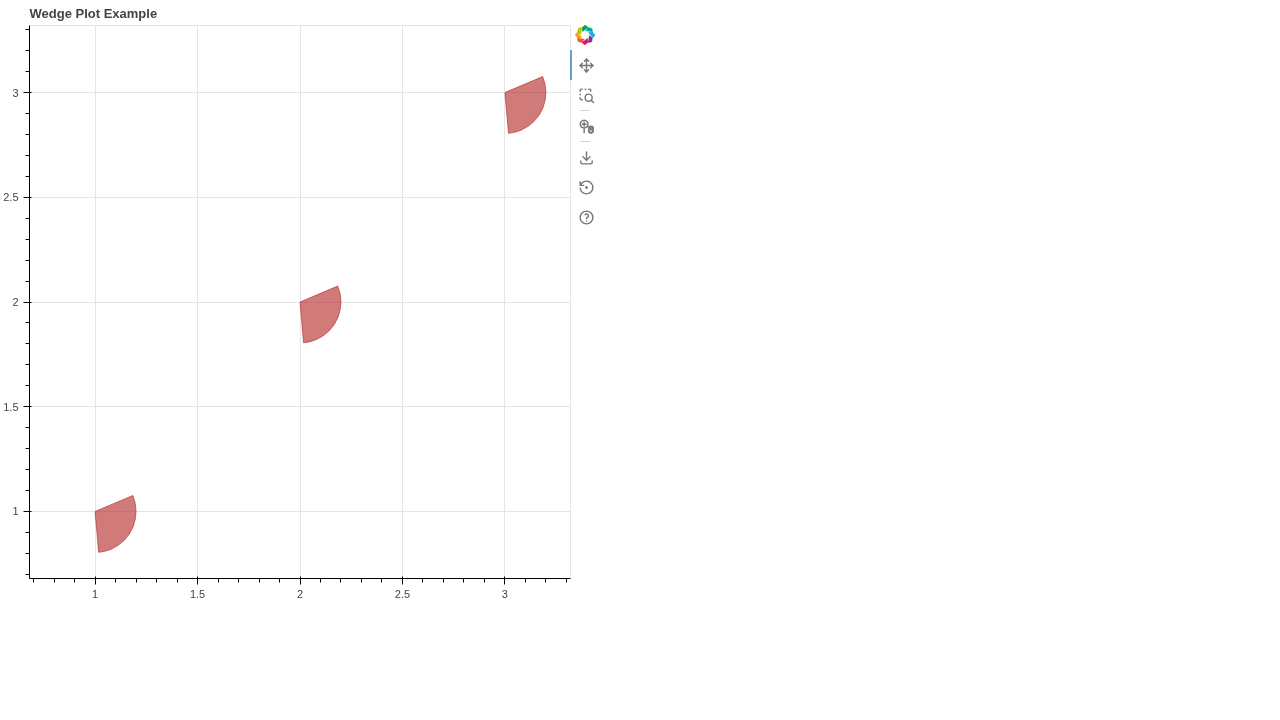
16. Segment Plot
Segment plots are used to draw multiple independent straight line segments by specifying pairs of starting and ending coordinates.
from bokeh.plotting import figure, output_file, save
p = figure(title="Segment Plot Example")
p.segment(x0=[1, 2, 3], y0=[1, 2, 3], x1=[1.2, 2.5, 3.7], y1=[1.5, 2.1, 3.9], color="#F4A582", line_width=3)
output_file('16_segment_plot.html')
save(p)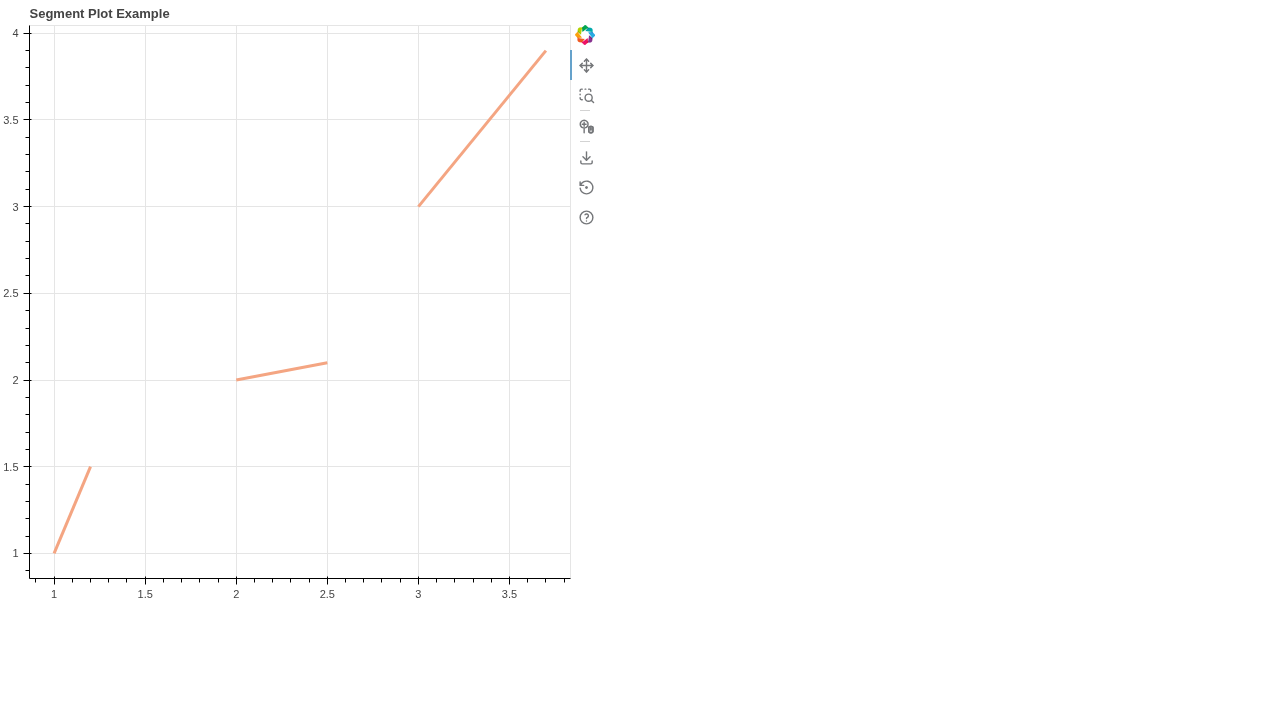
17. Ray Plot
Ray plots draw lines that start at a specific point and extend indefinitely in a given angle, which is useful for indicating directions.
from bokeh.plotting import figure, output_file, save
p = figure(title="Ray Plot Example")
p.ray(x=[1, 2, 3], y=[1, 2, 3], length=45, angle=0.6, color="#1B9E77", line_width=2)
output_file('17_ray_plot.html')
save(p)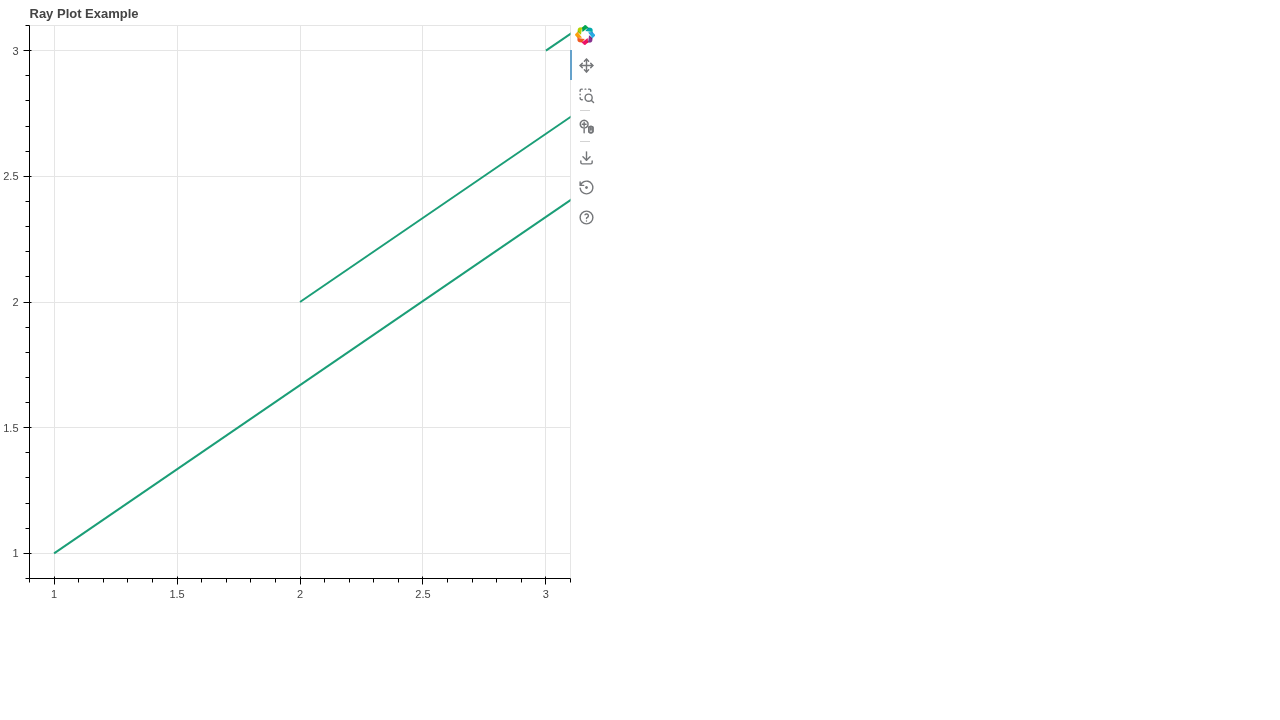
18. Multi-Line Plot
Multi-line plots allow you to draw several separate lines at once using nested lists of coordinates.
from bokeh.plotting import figure, output_file, save
p = figure(title="Multi-Line Example")
p.multi_line(xs=[[1, 2, 3], [2, 3, 4]], ys=[[2, 1, 4], [4, 3, 5]], color=["firebrick", "navy"], line_width=2)
output_file('18_multi_line.html')
save(p)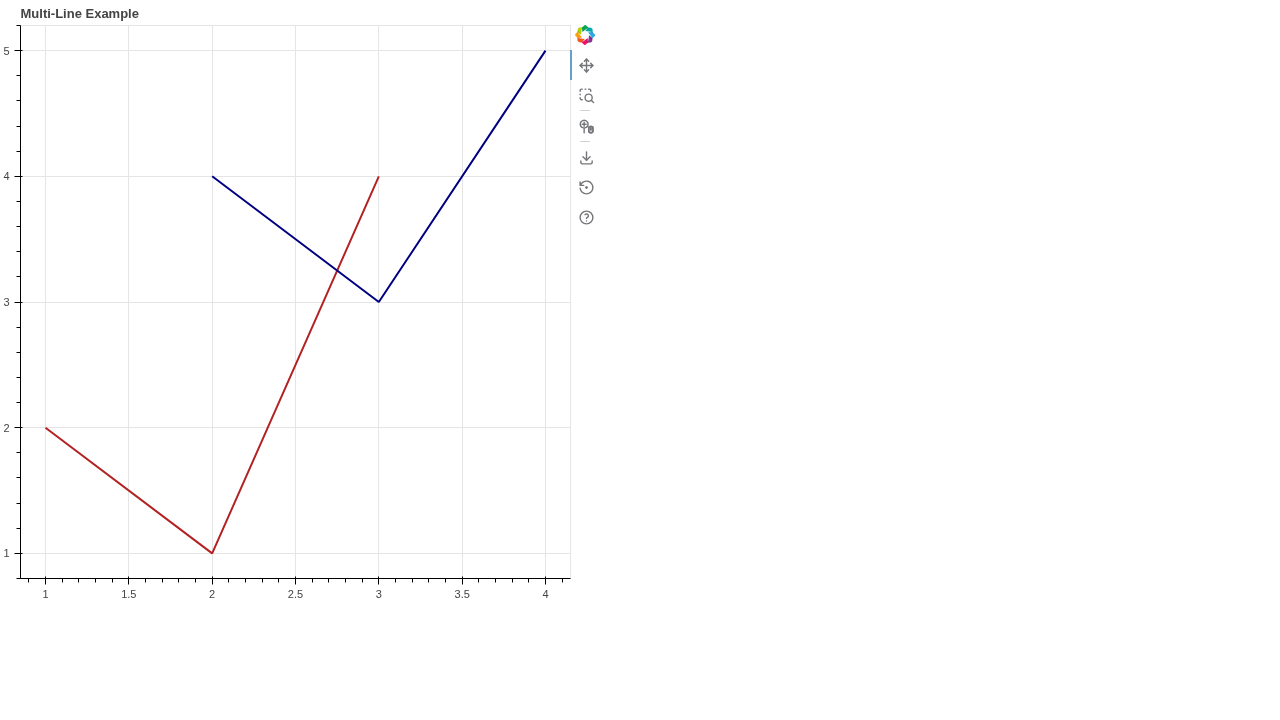
19. Multi-Polygon Plot
Multi-polygon plots are used to create complex polygonal shapes, useful in geographical mapping and advanced geometry.
from bokeh.plotting import figure, output_file, save
p = figure(title="Multi-Polygon Example")
p.multi_polygons(xs=[[[[1, 2, 2, 1]]]], ys=[[[[1, 1, 2, 2]]]], color="olive", alpha=0.5)
output_file('19_multi_polygon.html')
save(p)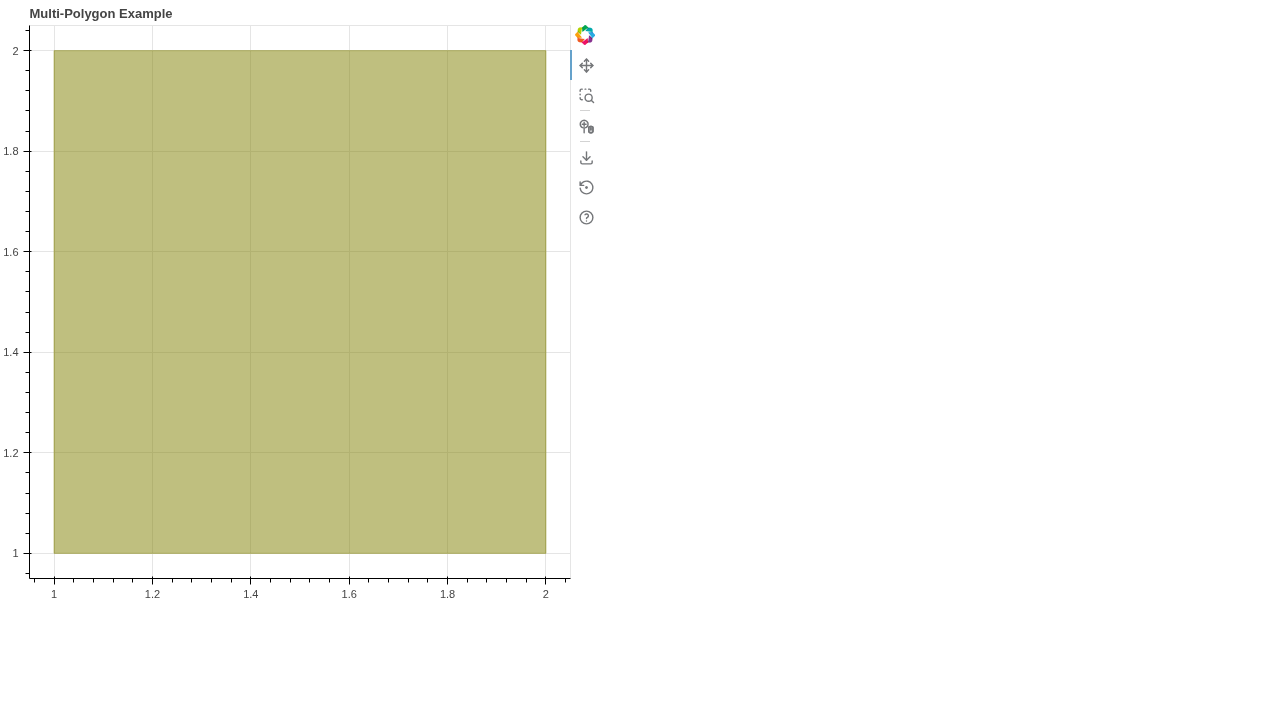
20. Text Annotation
Bokeh allows you to add custom text annotations directly onto your plot at specified coordinates to highlight key data points.
from bokeh.plotting import figure, output_file, save
p = figure(title="Text Annotation Example")
p.text(x=[1, 2, 3], y=[1, 2, 3], text=["A", "B", "C"], text_color="firebrick", text_font_size="20pt")
output_file('20_text_annotation.html')
save(p)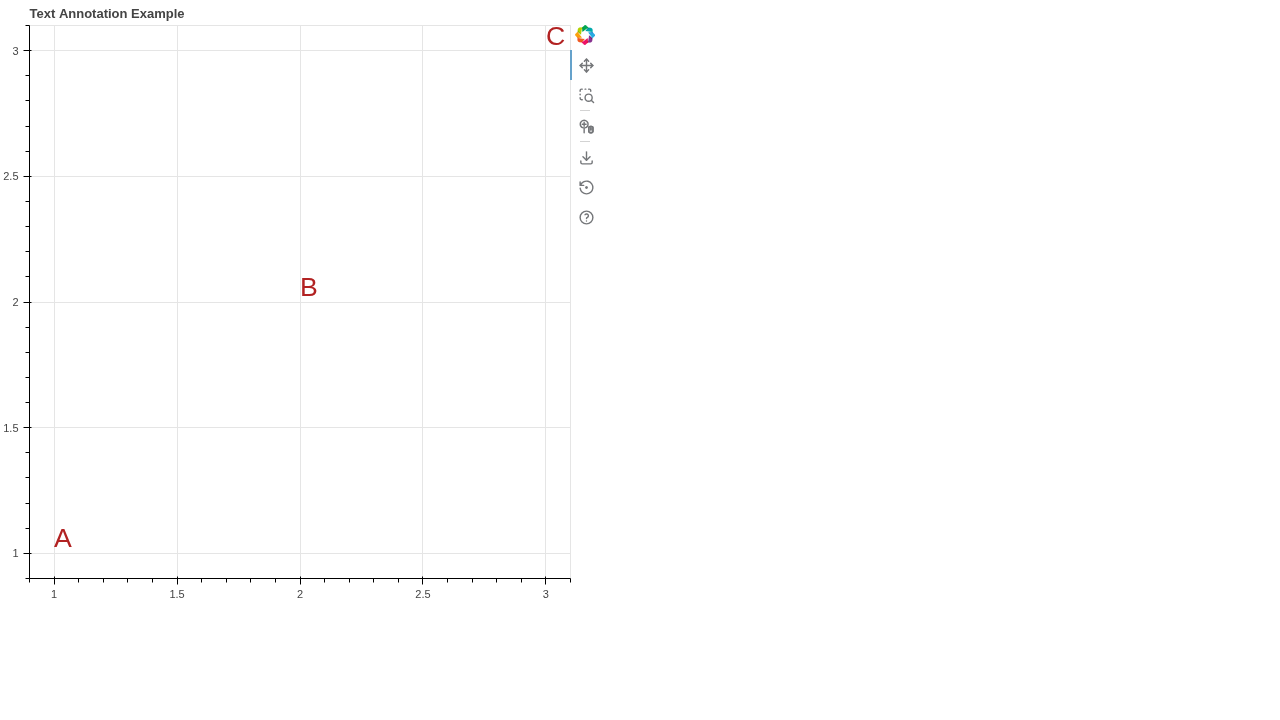
21. Gridplot
The `gridplot` layout is incredibly useful when you want to arrange multiple different charts side-by-side into a structured grid format.
from bokeh.plotting import figure, output_file, save
from bokeh.layouts import gridplot
x = list(range(11))
y0 = x
y1 = [10 - i for i in x]
p1 = figure(width=250, height=250, title="Plot 1")
p1.scatter(x, y0, size=10, color="firebrick")
p2 = figure(width=250, height=250, title="Plot 2")
p2.line(x, y1, line_width=3, color="navy")
p = gridplot([[p1, p2]])
output_file('21_gridplot.html')
save(p)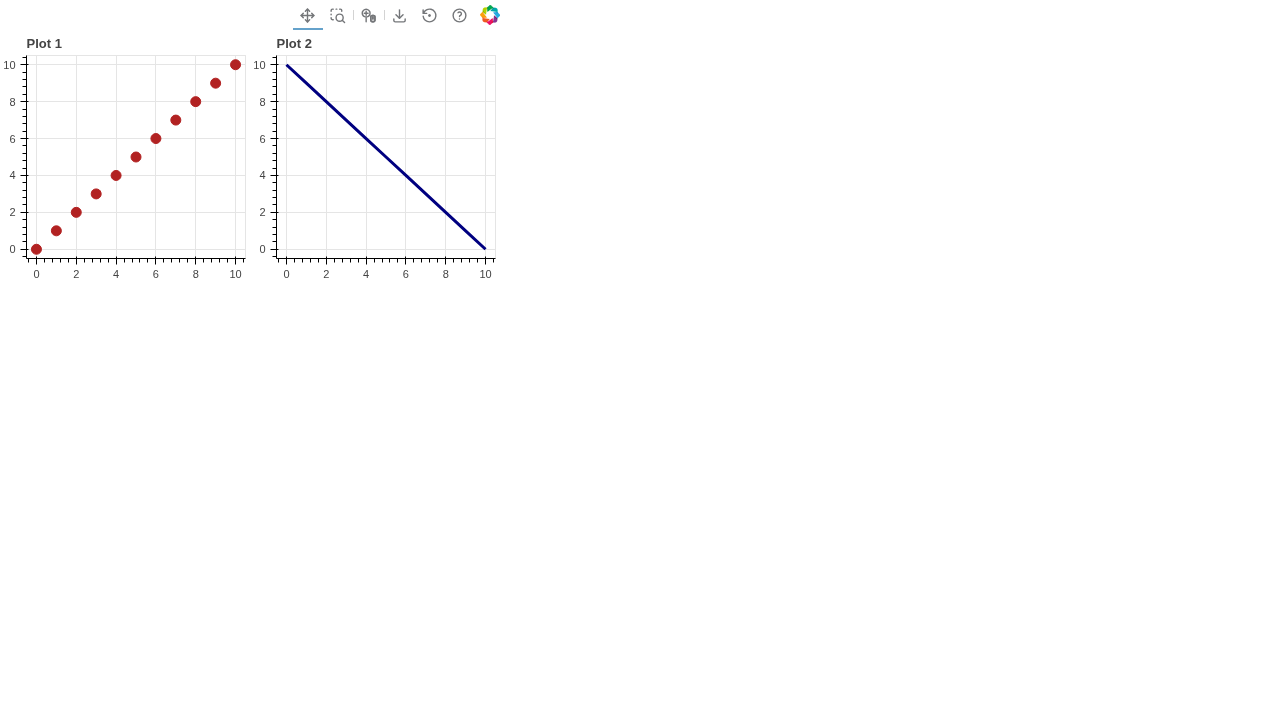
22. Categorical Heatmap
Heatmaps use color coding to represent data values across two categorical axes, revealing patterns and clusters.
from bokeh.plotting import figure, output_file, save
factors = ["a", "b", "c", "d"]
x = ["a", "b", "c", "d"]
y = ["a", "b", "c", "d"]
p = figure(title="Categorical Heatmap", x_range=factors, y_range=factors)
p.rect(x=x, y=y, width=1, height=1, color="#718dbf", alpha=0.5)
output_file('22_categorical_heatmap.html')
save(p)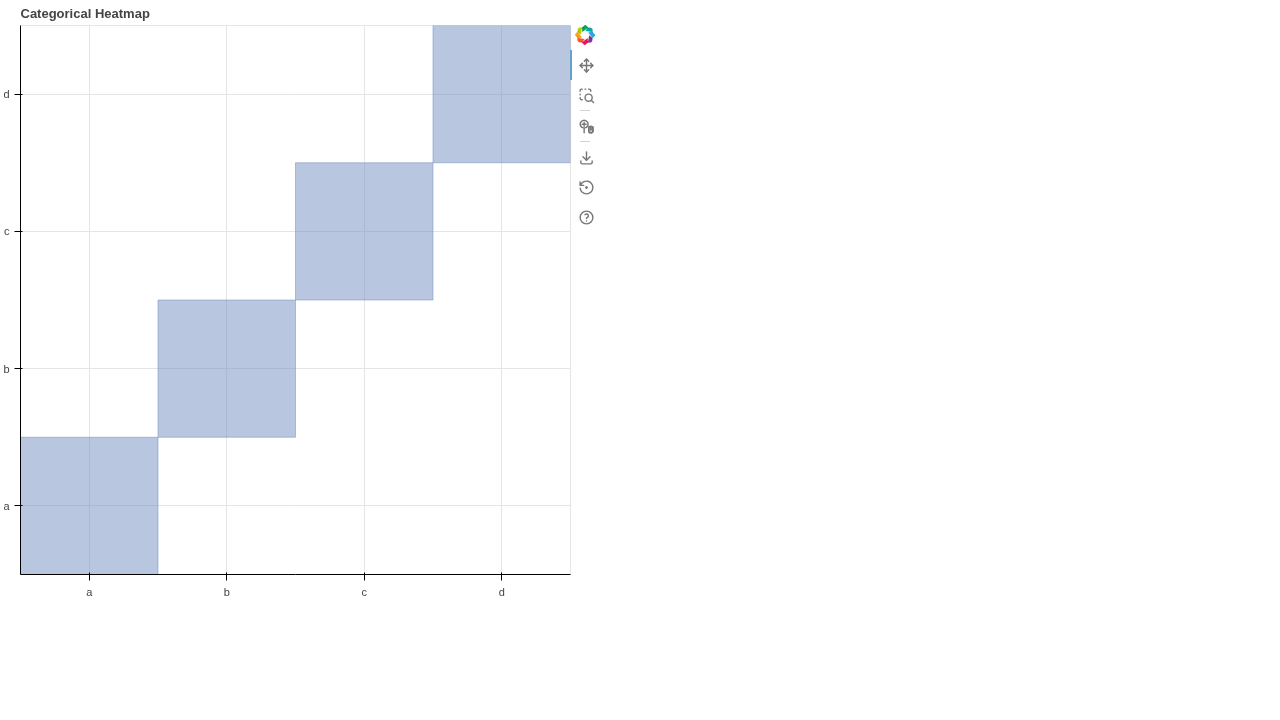
23. Log Axis Plot
Logarithmic axis plots are essential when your data spans several orders of magnitude, allowing you to compress large ranges into a readable format.
from bokeh.plotting import figure, output_file, save
x = [0.1, 0.5, 1.0, 1.5, 2.0, 2.5, 3.0]
y = [10**i for i in x]
p = figure(title="Logarithmic Axis Example", y_axis_type="log")
p.line(x, y, line_width=2)
p.scatter(x, y, fill_color="white", size=8)
output_file('23_log_axis.html')
save(p)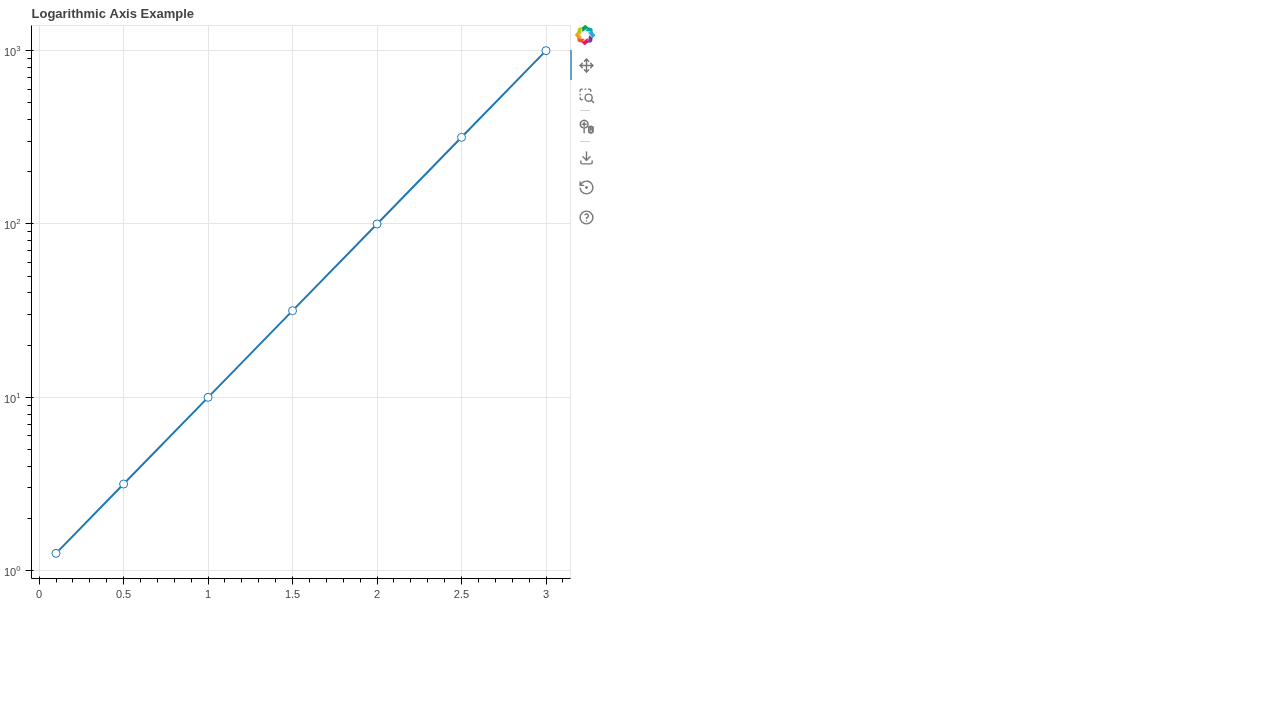
24. Range Tool Plot
You can explicitly define the starting and ending limits of your axes using Bokeh’s `Range1d` to focus on a specific part of your data.
from bokeh.plotting import figure, output_file, save
from bokeh.models import Range1d
p = figure(title="Custom Range Plot", x_range=Range1d(0, 10), y_range=Range1d(0, 20))
p.scatter([1, 5, 9], [2, 10, 18], size=10, color="navy")
output_file('24_range_tool.html')
save(p)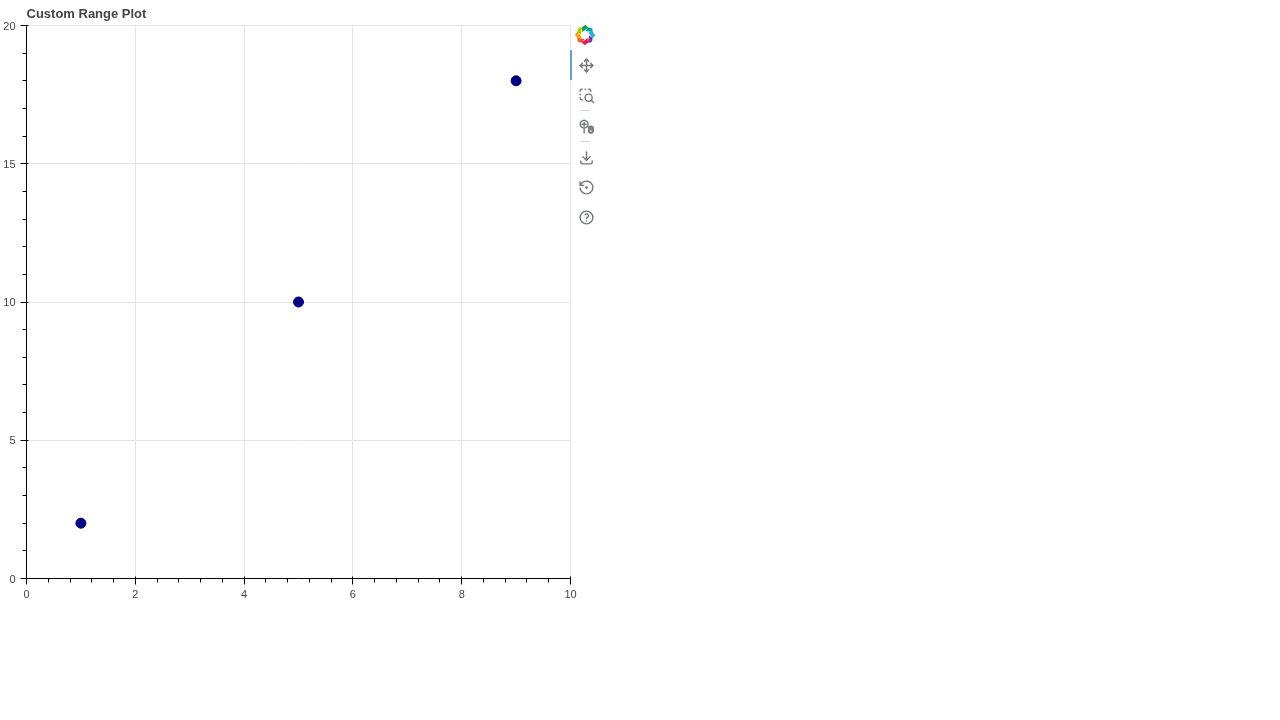
25. VBar Plot
The VBar glyph gives you precise control over vertical bars by letting you define the exact top and bottom boundaries for each bar.
from bokeh.plotting import figure, output_file, save
p = figure(title="VBar Example")
p.vbar(x=[1, 2, 3], width=0.5, bottom=0, top=[1.2, 2.5, 3.7], color="firebrick")
output_file('25_vbar_plot.html')
save(p)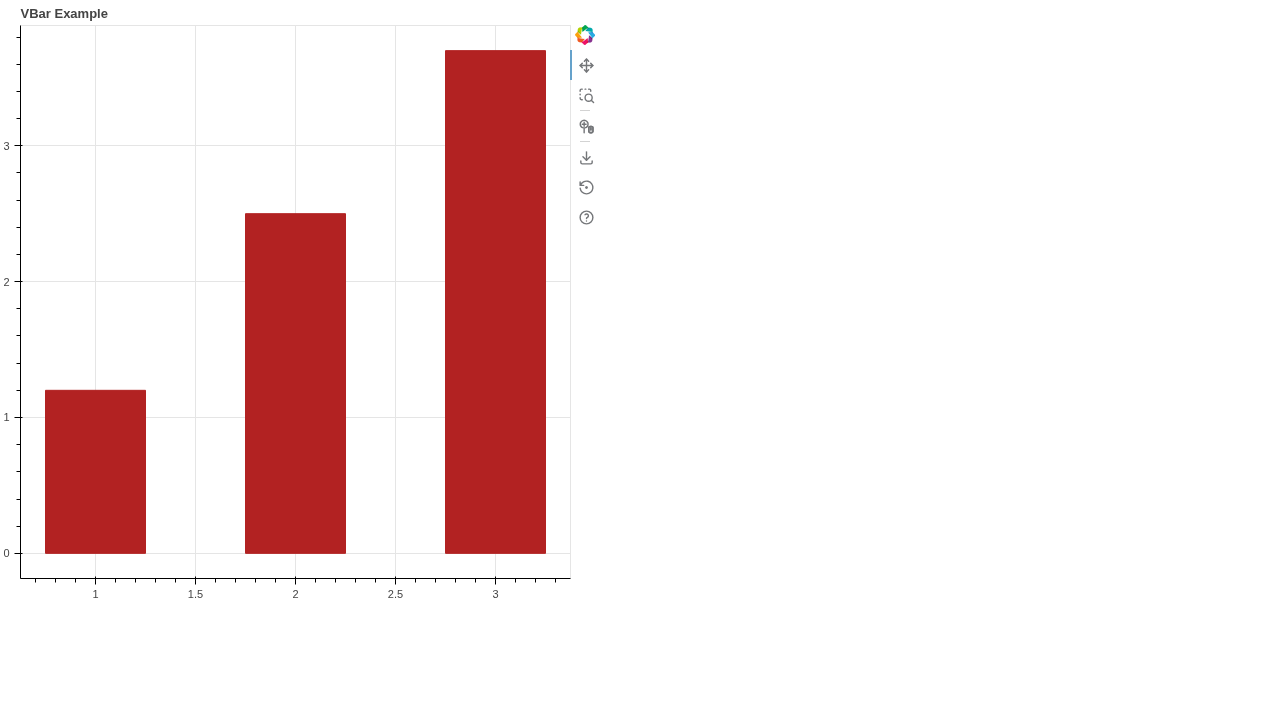
If you want to view the complete code and clone it directly, check out the GitHub repository below:
View on GitHub