
Okay. Be honest with me for a second.
You uninstall a piece of software. You open Chrome, you remove its extension, you close the browser, and you think to yourself, “Alright, that is done.” Then a week later you create a fresh profile, or you reset Chrome, and the extension is just… back. Sitting in the toolbar like it never left.
I went through this loop more times than I want to admit. The worst offender for me was the Adobe Acrobat extension. You uninstall Acrobat, you remove the extension, and every single new profile you create gets it reinstalled automatically. Resetting Chrome does not fix it. Removing it again does not fix it. Nothing fixes it, because the thing installing it was never inside Chrome in the first place.
I actually wrote about this on dev.to a while back, when the frustration finally won. That post was the short version. This is the full one.
So what did I end up building?
A small Windows utility called Extension Cleaner. One PowerShell script, no installer, no dependencies to download, no GUI framework. You paste one line into a terminal and it shows you every extension that was forced onto your machine through the Windows registry or through browser policy, then lets you pick which ones to delete.
Here is the entire installation process:
powershell -ExecutionPolicy Bypass -c "irm https://raw.githubusercontent.com/zpratikpathak/Extension-Cleaner/home/remove.ps1 | iex"Windows will throw a User Account Control prompt at you, and that is a good sign, because cleaning machine-level registry keys genuinely requires admin access. Accept it, and this is what you get:
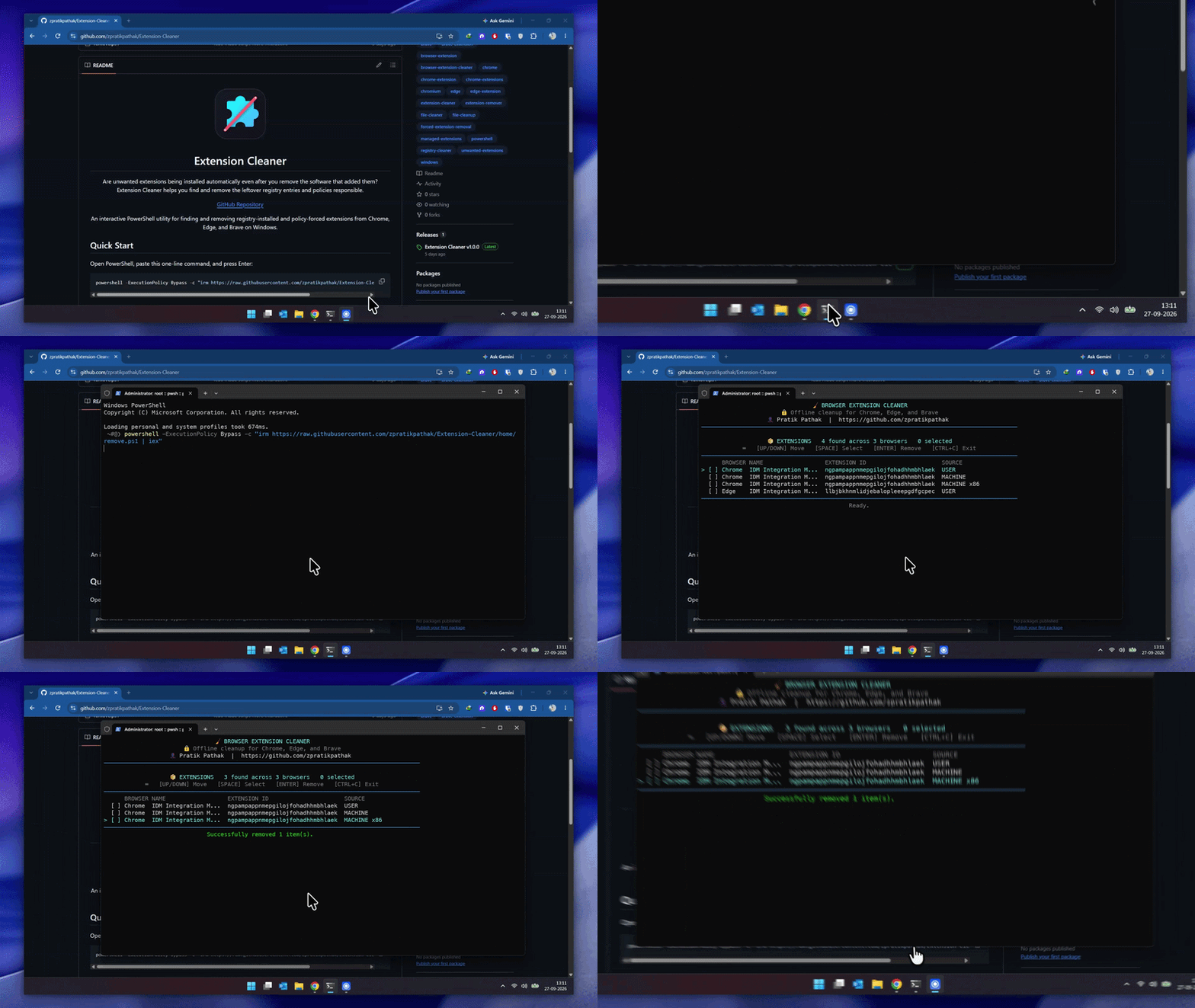
That is the whole product. No settings menu, no checkboxes hidden behind three tabs, no “click here to scan again” button. It scans, it lists, you pick, it deletes.
What it actually finds
I did not want a tool that only looks at one place, because the extensions that refuse to die never live in just one place. So Extension Cleaner checks four separate sources across three browsers:
- User-level registry keys (HKCU) – extensions installed for your Windows user account.
- Machine-level registry keys (HKLM) – extensions installed system-wide, which is why they survive profile resets and show up for every account on the PC.
- 32-bit registry view (the WOW6432Node mirror) – where older installers leave their entries, and where most cleanup tools simply forget to look.
- Browser policy force-lists – the ExtensionInstallForcelist policies that administrators (and, let’s be honest, some shady installers) use to reinstall an extension every single time.
It covers Google Chrome, Microsoft Edge, and Brave, since all three are Chromium under the hood and all three use the same registry layout. And instead of showing you a wall of 32-character extension IDs, it resolves each one to a real name.
Using the menu
The interface is pure keyboard, because clicking a checkbox in a terminal window felt like a lie. Four keys, that is it:
- Up / Down – move through the list of detected extensions
- Space – select or deselect an extension
- Enter – remove everything you selected, and keep the menu open
- Ctrl+C – exit
That last detail mattered a lot to me. A cleanup tool that deletes things you did not ask it to delete is not a cleanup tool, it is a hazard. So the menu stays open after every removal, you see the list update in place, and you can exit whenever you are satisfied.
If you would rather not pipe a script from the internet (completely fair), you can download the ZIP from GitHub, extract it, and run it locally:
powershell -ExecutionPolicy Bypass -c ".\remove.ps1"How I built it
Now the fun part. If you only care about using the tool, you can stop here. If you want to know why it exists in this exact shape, keep reading.
Why PowerShell, and why a single file
I went back and forth on this. A C# app would have looked nicer. An Electron wrapper would have looked nicer still. But every one of those options means an installer, a runtime, a download step, and a user who has to trust a binary. PowerShell is already on every Windows 10 and Windows 11 machine, it can read and delete registry keys natively, and it can be executed directly from a URL. One file, zero install, and the entire source is readable by anyone before they run it. That transparency was the whole point for me.
Self-elevation
Machine-level registry keys need admin rights, so the script checks on startup whether it already has them. If not, it relaunches itself with Start-Process -Verb RunAs, which is what triggers the UAC prompt you saw in the GIF.
The tricky bit is that when you run the one-liner, there is no script file on disk yet. You are piping bytes straight from the internet into PowerShell, so $PSCommandPath is empty and there is nothing to relaunch. So the script handles that too: it downloads itself into a temp folder first, then relaunches that copy as administrator. This was the detail that took the longest to get right, and the one I am weirdest about being proud of.
Finding the extensions
Each browser gets a config object holding its registry paths and its force-list policy paths, and the scanner just walks all of them:
[PSCustomObject]@{
    Name = 'Chrome'
    ManifestRoot = Join-Path $env:LOCALAPPDATA 'Google\Chrome\User Data'
    RegistryPaths = @(
        'HKCU:\Software\Google\Chrome\Extensions',
        'HKLM:\Software\Google\Chrome\Extensions',
        'HKLM:\Software\WOW6432Node\Google\Chrome\Extensions'
    )
    PolicyPaths = @(
        'HKCU:\Software\Policies\Google\Chrome\ExtensionInstallForcelist',
        'HKLM:\Software\Policies\Google\Chrome\ExtensionInstallForcelist'
    )
}
Every child key under those registry paths is one extension, and the key name is the extension ID. Edge and Brave follow the exact same structure, just with different vendor names, which is why adding a fourth Chromium browser would be a five-line change.
Turning IDs into names
A list of IDs like efaidnbmnnnibpcajpcglclefindmkaj is useless to a human, so resolution happens in three stages.
- Local manifest first. Chromium stores each installed extension’s
manifest.jsoninside its User Data folder. Read that, grab thenamefield, done – no network needed. - Localized names. Plenty of extensions do not store a plain name, they store a placeholder like
__MSG_appName__and put the real string in_locales. So if the name matches that pattern, the script jumps into the locale folder for the extension’sdefault_localeand pulls the actual message out ofmessages.json. - Store lookup as a fallback. If there is no local manifest at all (which happens when the software was uninstalled and only the registry entry survived), it fetches the extension’s page from Microsoft Edge Add-ons or the Chrome Web Store and reads the page title. That is the reason the tool occasionally needs internet access.
Adobe Acrobat’s extension ID I ended up hardcoding, because its manifest is stubborn in a way I stopped wanting to argue with. Pragmatism over purity.
The terminal interface
The menu is a plain console loop reading key presses with [Console]::ReadKey, and the whole screen redraws in place using SetCursorPosition instead of clearing the terminal, so the scan spinner and the list stay readable. The spinner is just four characters cycling while a name lookup is in flight, which keeps the UI from looking frozen during a slow store request. Ctrl+C is caught explicitly through TreatControlCAsInput so it exits cleanly instead of throwing.
Removing an entry is two lines depending on what it is: Remove-Item -Recurse for a registry key, Remove-ItemProperty for a value inside a policy force-list. Then the list rebuilds, the selection clears, and the menu waits for the next keystroke.
What I took away from this
Most “my browser is haunted” problems are not browser problems at all. They are Windows registry problems that happen to be visible in a browser, and the browser will never tell you that. Once I understood where the extensions were actually stored, the fix went from impossible to about 400 lines of PowerShell.
Also, and this is a note to myself more than anyone: a tool that does one thing, in one file, with no installer, is genuinely a joy to share. Nobody has to trust a binary. Nobody has to install anything. They read the script, they run the script, and 30 seconds later the extension that has been stalking them across every new profile is finally gone.
Related reading
- The original dev.to post – the short, frustrated version of this story.
- How to Build a Completely Air-Gapped Python Development Environment in VS Code – another angle on surviving locked-down, policy-heavy Windows machines.
- I built a FREE agent to automate my WordPress Blog – the other small automation I use to keep this blog running.