Installing VS Code extensions is usually effortless—click Install, wait a second, and move on.
Until the day you can’t.
Offline machines.
Air-gapped servers.
Strict enterprise networks.
Version pinning requirements.
That’s when you realize you don’t just need the Python extension—you need the VSIX file itself.
Manual ms-python.python VSIX download is often required by developers, system administrators, and DevOps engineers working in controlled or offline environments.
Direct Auto-Updating VSIX Downloads
Click below to download the latest stable version directly from the Microsoft VS Code Marketplace. These links are automatically updated to point to the newest non-prerelease version available for your architecture.
⭐ Recommended Method: The VSIX Downloader Web App
Since the VS Code Marketplace recently removed or obscured the direct download link for “.vsix” files, the absolute easiest and fastest way to get your extensions is by using the free, open-source VSIX Downloader tool.
Why use this tool?
- Premium Dark UI: Built with a fast, developer-first Command Palette-style interface.
- Version Matrix: Easily choose between downloading stable releases or pre-release versions.
- Offline Support: Perfect for enterprise environments, air-gapped machines, or taking backups.
What You’ll Need Before You Start
Before downloading and installing the Python extension manually, make sure you have:
- Visual Studio Code installed
- Internet access (only for downloading the VSIX)
- Permission to install extensions
- The exact extension version you want (important for enterprises)
Once the VSIX is downloaded, internet access is no longer required.
Why the Python VS Code Extension Matters
The ms-python.python extension is the official Python extension maintained by Microsoft, available on the Visual Studio Code Marketplace. It provides:
- Python language support
- IntelliSense and code completion
- Debugging
- Environment and interpreter management
- Integration with Pylance
- Testing and linting tools
In standard development environments, installing extensions directly from the Marketplace is straightforward.
In restricted or offline environments, Marketplace access may be unavailable, making manual VSIX installation necessary.
Advantages of Installing via VSIX
Advantages:
- Works completely offline
- Full control over extension versions
- No automatic updates
- Ideal for air-gapped and enterprise environments
- Portable across machines
- Suitable for CI images and golden VMs
Disadvantages:
- Dependencies must be downloaded manually
- No auto-updates
- Requires version compatibility checks
This trade-off is expected—and often required—in professional setups.
Common Misconception: “VS Code Caches VSIX Files”
Let’s clear this up clearly.
VS Code does not store downloaded VSIX files after installation.
Folders such as:
%USERPROFILE%\.vscode\extensions~/.vscode/extensions
contain installed extensions only, not the original “.vsix” files.
If you need a VSIX file, you must explicitly download it.
There is:
- ❌ No cache
- ❌ No hidden flag
- ❌ No CLI trick
The Only Correct Way to Download a VSIX File Today
Microsoft has removed the Download Extension button from the Marketplace UI.
The only supported and reliable method now is the Marketplace REST API.
The Marketplace REST API is currently the only supported and reliable way to perform a ms-python.python VSIX download.
Step 1: Identify the Required Extension Version
You must decide which version you want.
Ways to find the version:
- Check release notes
- Look at an already working machine
- Follow enterprise compatibility requirements
Example version used below:
2026.4.0Step 2: Construct the Official Marketplace Download URL
URL Format
https://marketplace.visualstudio.com/_apis/public/gallery/publishers/{publisher}/vsextensions/{extension}/{version}/vspackagePython Extension Example
https://marketplace.visualstudio.com/_apis/public/gallery/publishers/ms-python/vsextensions/python/2026.4.0/vspackageOpening this URL downloads the VSIX file directly.
Directly accessing the Marketplace API ensures the VSIX file is downloaded correctly and without relying on deprecated UI features.
Step 3: Download the VSIX File
Method A: Using a Browser
- Paste the URL into your browser
- Save the file as:
ms-python.python-2026.4.0.vsixMethod B: Using Command Line (Recommended)
Windows (PowerShell)
Invoke-WebRequest `
  -Uri "https://marketplace.visualstudio.com/_apis/public/gallery/publishers/ms-python/vsextensions/python/2026.4.0/vspackage" `
  -OutFile "ms-python.python-2026.4.0.vsix"
Linux / macOS
curl -L \
  -o ms-python.python-2026.4.0.vsix \
  https://marketplace.visualstudio.com/_apis/public/gallery/publishers/ms-python/vsextensions/python/2026.4.0/vspackage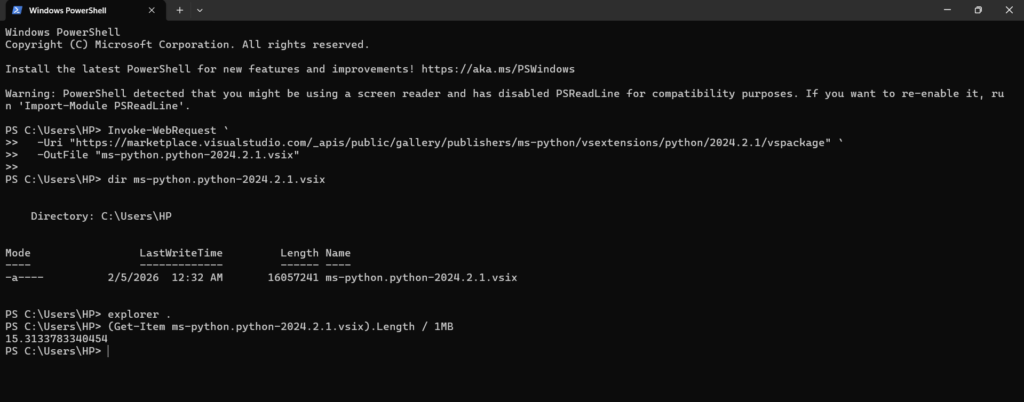
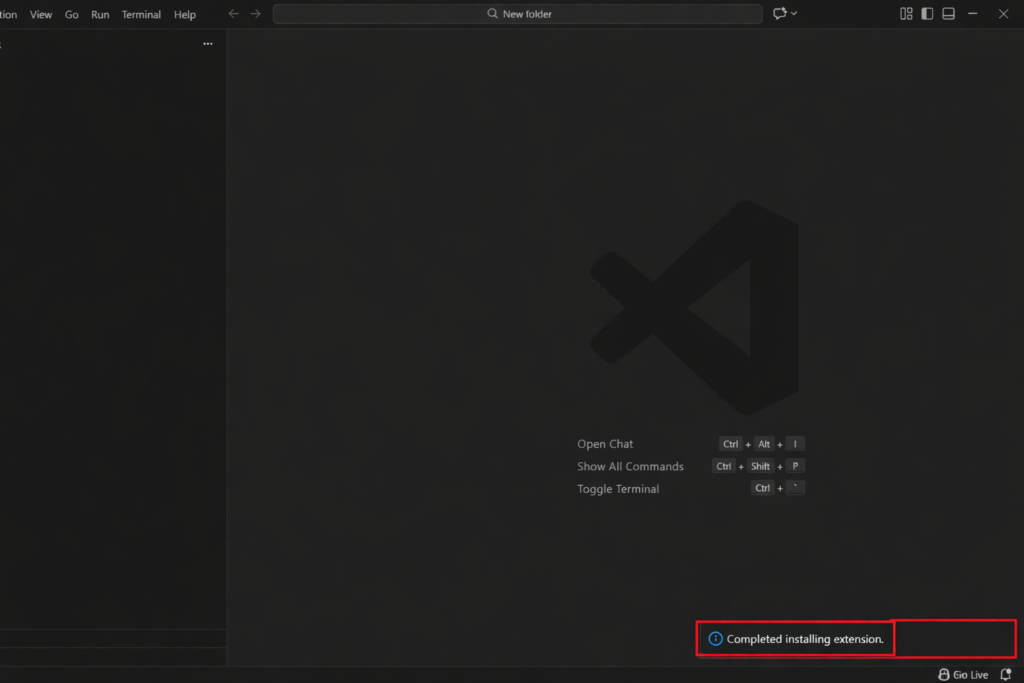
Step 4: Install the VSIX File in VS Code
Method A: VS Code UI
- Open VS Code
- Go to Extensions
- Click the three-dot menu
- Select Install from VSIX…
- Choose the downloaded file
Method B: Command Line
code --install-extension ms-python.python-2026.4.0.vsixThis works even on machines with no internet access.
Handling Dependencies (Very Important)
The Python extension depends on other extensions, such as:
- Pylance
- Python Debugger (
debugpy)
In offline environments:
- Download each dependency using the same API method
- Install them manually before or after the Python extension
Failing to do this is a common reason Python tooling appears broken offline.
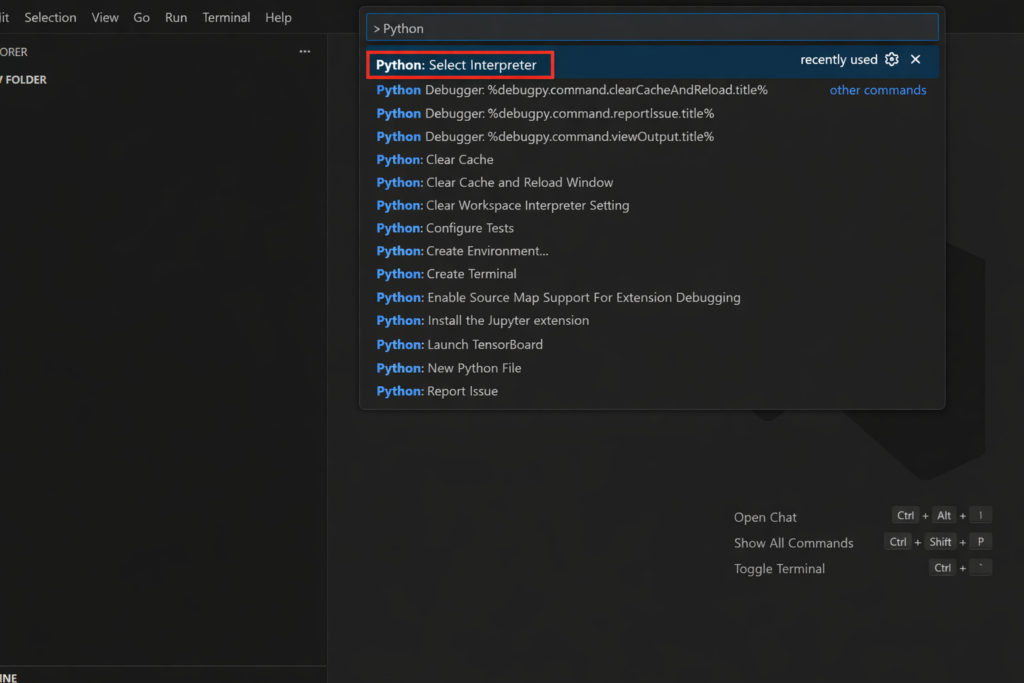
Step 5: Verify the Installation
After installation:
- Open Command Palette (
Ctrl + Shift + P) - Type:
Python: Select InterpreterIf the command appears, the extension is active.
Enterprise & Air-Gapped Use Cases
Manual VSIX installation becomes especially important in scenarios such as:
- Working in government or defense networks
- Managing CI runners without internet
- Freezing extension versions for audits
- Preloading developer virtual machines
- Building golden images
In these environments, manual VSIX control is mandatory.
What This Method Does NOT Do
Let’s be explicit:
- ❌ It does not bypass licensing
- ❌ It does not change extension behavior
- ❌ It does not auto-update extensions
It simply gives you control.
Having full control over extension versions and installation sources is critical in regulated or offline environments.
Troubleshooting Tips
Extension not activating?
- Check VS Code version compatibility
Python features missing?
- Ensure Pylance is installed
Everything installed but nothing works?
- Verify Python itself is installed on the system
These are environment issues—not VSIX issues.
Final Thoughts
Most articles on this topic are outdated, misleading, or incomplete.
This one isn’t.
You now know:
- Where VSIX files really come from
- Why VS Code doesn’t cache them
- The only supported download method
- How to install safely in offline environments
If someone asks you tomorrow how to manually install the Python extension, you won’t guess.
You’ll know.
Having full control over extension versions and installation sources is critical in regulated or offline environments.
People Also Ask
Can I download VS Code extensions for offline use?
Yes, you absolutely can. You can download the `.vsix` file for any extension manually (using the Marketplace API or a tool like the VSIX Downloader) and then install it in VS Code on any machine, even those without internet access.
Where are VS Code VSIX files stored after installation?
VS Code does not store the original `.vsix` files after an extension is installed. The extensions are extracted and placed in a specific directory (e.g., %USERPROFILE%\.vscode\extensions on Windows), but the original `.vsix` package is not retained by default.
How do I install the Python extension manually?
To install the Python extension manually, download its `.vsix` file using the official VS Code Marketplace API (or the VSIX Downloader tool) and then use VS Code’s “Install from VSIX…” command in the Extensions view or the `code –install-extension` command-line argument.