
I still remember when I first tried building an azure openai agent. I was drowning in a sea of confusing documentation, struggling to connect my Python scripts to a reliable LLM. The leap from a simple chat script to an agent that actually does things—like searching the web, calling APIs, or managing state—felt huge. But here’s the secret: once you understand the core loop, it’s surprisingly straightforward. Today, let’s figure this out together and build your first autonomous agent using Azure OpenAI and Python.
Why Build an Azure OpenAI Agent?
If you’re wondering why we are using Azure OpenAI instead of the native OpenAI API, it comes down to enterprise readiness. When I started moving my experimental projects into production, I needed guarantees around data privacy, SLA uptimes, and regional availability. Azure provides all of that out of the box, ensuring your agent’s data isn’t used to train public models.
The Agent Architecture
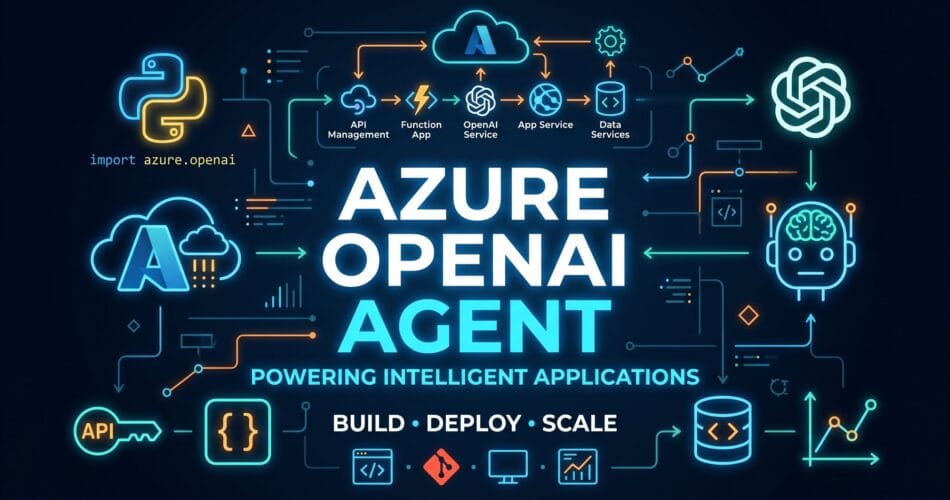
An autonomous agent needs three primary components to function effectively:
- The Brain: The LLM (in our case, GPT-4 on Azure OpenAI) that reasons about the user’s request.
- The Tools: Python functions that allow the agent to interact with the outside world (like getting the weather or querying a database).
- The Loop: The orchestrator that passes messages between the user, the LLM, and the tools until the task is complete.
Step 1: Setting Up the Environment
First, let’s set up our Python environment. I highly recommend using Poetry for dependency management, but standard pip works too. We need the official OpenAI Python package and python-dotenv to manage our secrets.
pip install openai python-dotenvNext, create a .env file in your project root to securely store your Azure credentials:
AZURE_OPENAI_ENDPOINT="https://your-resource-name.openai.azure.com/"
AZURE_OPENAI_API_KEY="your-api-key-here"
AZURE_OPENAI_API_VERSION="2024-02-15-preview"
AZURE_OPENAI_DEPLOYMENT_NAME="gpt-4"
Step 2: Initializing the Azure OpenAI Client
Now, let’s write the Python code to initialize our connection to Azure. This is where we bridge our script to the LLM’s brain.
import os
import json
from dotenv import load_dotenv
from openai import AzureOpenAI

load_dotenv()

client = AzureOpenAI(
    azure_endpoint=os.getenv("AZURE_OPENAI_ENDPOINT"),
    api_key=os.getenv("AZURE_OPENAI_API_KEY"),
    api_version=os.getenv("AZURE_OPENAI_API_VERSION")
)
deployment_name = os.getenv("AZURE_OPENAI_DEPLOYMENT_NAME")Step 3: Defining the Tools
An agent is only as good as its tools. Let’s define a simple Python function that our agent can call. For this example, we’ll create a mock weather tool, but in the real world, this could be an API call to OpenWeather or your internal database.
def get_current_weather(location):
    """Get the current weather in a given location"""
    # In a real app, you would call an external API here
    if "seattle" in location.lower():
        return json.dumps({"location": "Seattle", "temperature": "52", "unit": "F"})
    elif "mumbai" in location.lower():
        return json.dumps({"location": "Mumbai", "temperature": "88", "unit": "F"})
    else:
        return json.dumps({"location": location, "temperature": "unknown"})
We also need to describe this tool to the LLM using JSON Schema so it knows exactly how and when to use it.
tools = [
    {
        "type": "function",
        "function": {
            "name": "get_current_weather",
            "description": "Get the current weather in a given location",
            "parameters": {
                "type": "object",
                "properties": {
                    "location": {
                        "type": "string",
                        "description": "The city and state, e.g. San Francisco, CA",
                    }
                },
                "required": ["location"],
            },
        }
    }
]
Step 4: Building the Execution Loop
This is the magic. The execution loop sends the user’s prompt to the LLM. If the LLM decides it needs to use a tool, it halts the response and returns a tool call request. Our script executes the Python function, appends the result to the message history, and sends it back to the LLM to formulate the final answer.
def run_agent(user_input):
    messages = [{"role": "user", "content": user_input}]

    print(f"User: {user_input}")

    # Step 1: Send the conversation and available tools to the model
    response = client.chat.completions.create(
        model=deployment_name,
        messages=messages,
        tools=tools,
        tool_choice="auto"
    )

    response_message = response.choices[0].message
    tool_calls = response_message.tool_calls

    # Step 2: Check if the model wants to call a function
    if tool_calls:
        messages.append(response_message)  # Append the assistant's tool call request

        # Step 3: Call the function
        available_functions = {
            "get_current_weather": get_current_weather,
        }

        for tool_call in tool_calls:
            function_name = tool_call.function.name
            function_to_call = available_functions[function_name]
            function_args = json.loads(tool_call.function.arguments)

            print(f"Agent is calling: {function_name} with {function_args}")
            function_response = function_to_call(location=function_args.get("location"))

            # Step 4: Send the info back to the model
            messages.append({
                "tool_call_id": tool_call.id,
                "role": "tool",
                "name": function_name,
                "content": function_response,
            })

        second_response = client.chat.completions.create(
            model=deployment_name,
            messages=messages,
        )
        print(f"Agent: {second_response.choices[0].message.content}")

    else:
        print(f"Agent: {response_message.content}")

# Let's test it!
run_agent("What's the weather like in Mumbai today?")
Wrapping Up
And there you have it! You’ve successfully built an autonomous agent that can reason about a request, decide which Python tool to execute, run the code, and synthesize a final response. While this is a basic example, the architecture scales beautifully. You can add tools for querying SQL databases, searching the web, or even interacting with other APIs.
In upcoming posts, I’ll dive into more advanced orchestration frameworks like LangGraph vs Azure AI Agents and how they compare to building custom loops like we did today. Let me know what kind of tools you plan to build for your first agent!